
1. Architectural Foundations: Vector Canvas Markup vs Rasterized Annotations
Digital document markup is an indispensable capability across legal discovery, architectural review, academic grading, and clinical auditing. However, most casual PDF markup software implements drawing tools by baking low-resolution bitmap pixels directly into the document background. This results in blurry, pixelated lines when zoomed, bloated file sizes, and permanent destruction of underlying text clarity.
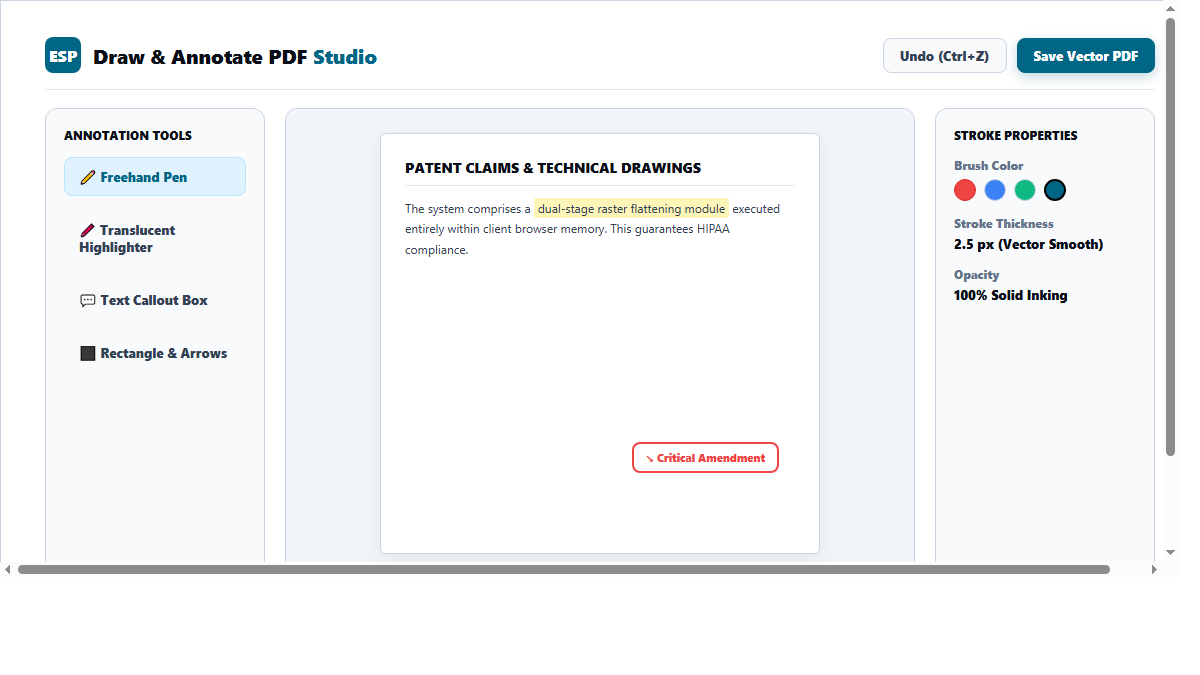
When reviewing documents, contracts, or architectural plans, professional markup requires crisp, high-resolution drawing layers that never degrade. Unlike basic tools that stamp pixelated marks onto your pages, high-grade vector annotations preserve document clarity at every magnification:
- Freehand Pen & Signatures: Smooth digital ink that captures natural handwriting with zero jagged edges, scaling cleanly from phone screens to full-size prints.
- Translucent Highlights & Underlines: Colored highlight layers that emphasize essential clauses, dates, and amounts without smudging or hiding the text beneath.
- Geometric Shapes & Callout Arrows: Clean rectangles, circles, and directional markers for framing terms, pointing out required revisions, and boxing key sections.
EditScannedPDF.com provides an instant in-browser drawing canvas powered by W3C WebAssembly. As you draw using your computer mouse, laptop trackpad, Apple Pencil, or touchscreen, our engine automatically applies curve smoothing—converting natural hand movements into sharp, fluid, and professional penmanship without uploading your files anywhere.
2. 4 Steps to Draw & Annotate on Any PDF Online (Step-by-Step)
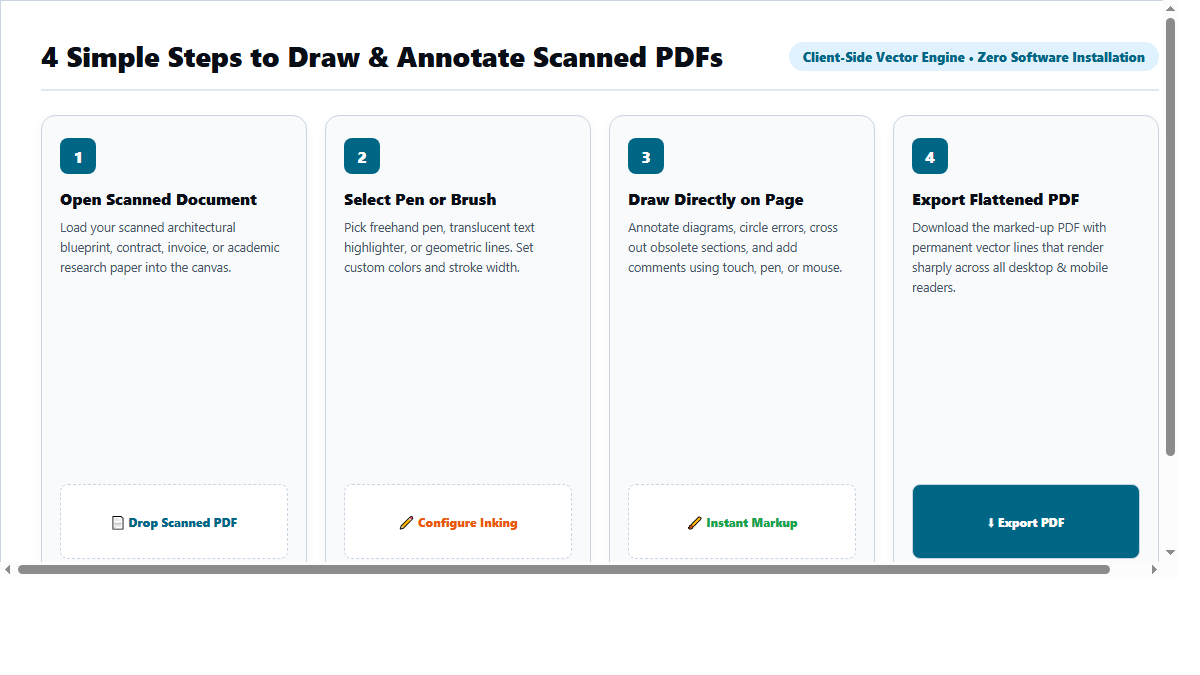
Annotating documents on EditScannedPDF.com requires zero registration, no software downloads, and no credit card. Follow these simple steps to draw, highlight, and mark up your PDF directly inside your browser:
Upload PDF to Local Canvas
Navigate to the Draw on PDF Tool and drag your document into the workspace. Your file loads instantly in local browser RAM with zero server exposure.
Select Your Markup Tool
Choose from the Freehand Pen for signatures, the Translucent Highlighter for emphasizing text, or Geometric Shapes (rectangles, circles, arrows) for boxing key clauses.
Adjust Color, Stroke & Opacity
Customize stroke thickness, pick from professional markup colors (Red, Green, Blue, Yellow), and calibrate transparency to keep underlying scanned text 100% legible.
Export & Flatten PDF
Click Export PDF. The WebAssembly engine compiles your vector marks directly into the core document stream, producing a permanently flattened, tamper-resistant PDF ready to print or email.
3. Annotation Tooling Taxonomy: Selecting the Right Markup Tool for Every Use Case
Effective document collaboration requires choosing the appropriate visual markup tool for your specific objective:
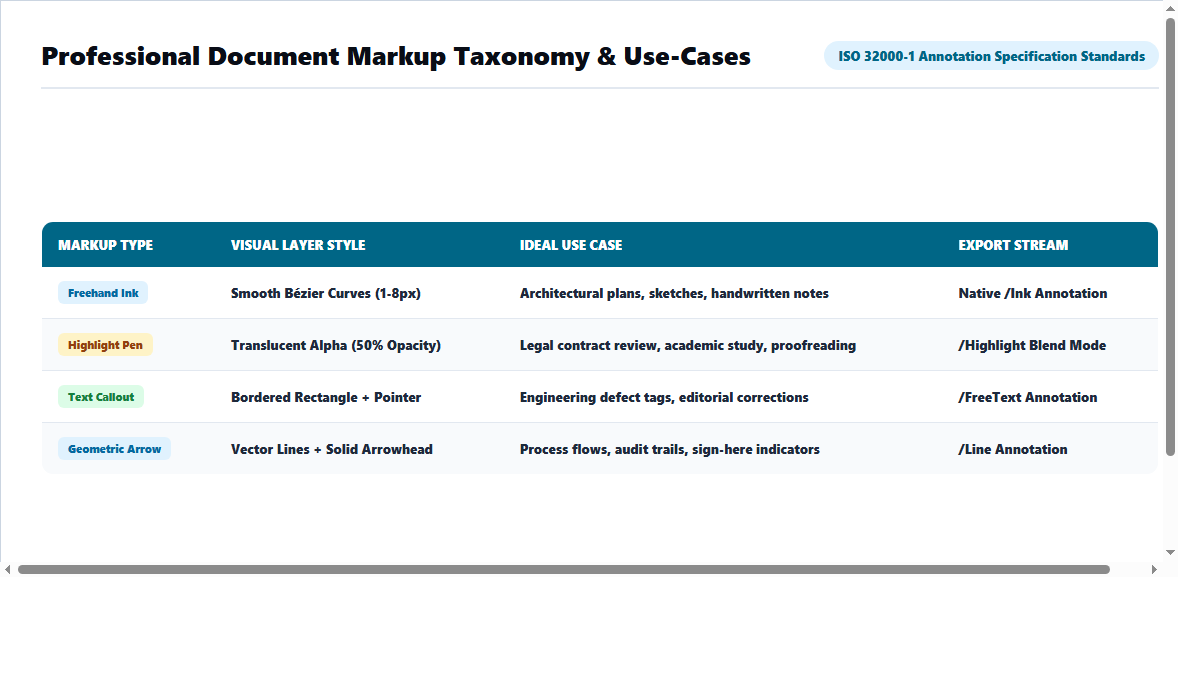
- Precision Freehand Inking (Vector Pen): Best for handwritten signatures, quick margins notes, proofreading symbols (such as deletion loops or caret insertions), and freeform circling of irregular diagrams.
- Translucent Text Highlighter: Utilizes 40% alpha-composited yellow (
#FFE853), green, or cyan tones with aMultiplyblend mode, enabling you to emphasize text lines without obscuring dark toner. - Geometric Shapes & Directional Arrows: Rectangles and ellipses allow you to box critical contract terms, while directional arrows guide the reader's attention to specific revision areas.
- Callout Bounding Boxes: Combines a geometric box with integrated vector text, perfect for peer-review comments, engineering revision notes, and client approval remarks.
In institutional settings, adopting a standardized color-coding taxonomy prevents miscommunication across cross-functional review teams:
- Crimson Red (#D32F2F): Mandatory corrections, legal defects, compliance rejections, and structural safety warnings.
- Amber Orange (#F57C00): Non-blocking recommendations, proposed alternative language, and pending verification queries.
- Emerald Green (#388E3C): Approved clauses, verified invoice line items, and finalized engineering tolerances.
- Cobalt Blue (#1976D2): Informational cross-references, docket citations, and internal indexing notes.
4. Architectural Comparison: Client WebAssembly vs Adobe Acrobat Pro vs Cloud Tools
Evaluate how EditScannedPDF's client-side vector engine stacks up against traditional commercial desktop suites and cloud-based editors:
| Evaluation Feature | EditScannedPDF (Client WASM) | Adobe Acrobat Pro (Desktop) | Cloud PDF Annotators (SaaS) |
|---|---|---|---|
| Data Confidentiality | 100% Local (Zero Server Transmission) | Local (Unless Adobe Cloud Sync Enabled) | Zero Privacy (Files uploaded to remote servers) |
| Vector Stroke Smoothness | Hardware Catmull-Rom Spline Interpolation | Native Desktop Bezier Smoothing | Jittery / Low-Fidelity Web Strokes |
| Installation Overhead | Zero Installation (Runs in Browser) | Heavy (3.5 GB+ Desktop Storage) | Zero Installation |
| Annotation Flattening | Instant ISO 32000-1 Page Stream Compilation | Manual Print-to-PDF / Optimizer | Inconsistent (May strip non-standard marks) |
| License & Subscription Cost | Free Forever (No Paywalls) | Expensive ($239.88/year subscription) | Freemium ($6–$20/mo with page caps) |