PDF to JPG Online Free
Convert PDF documents into high-resolution JPG images directly in your browser. Extract individual pages, generate crisp presentation slides, or create social media image previews with 100% private in-browser processing.
Only edit documents that you own or are legally authorized to modify. Do not use this website to alter documents for fraud, misrepresentation, identity misuse, or any illegal purpose. You are fully responsible for how you use edited documents; Edit Scanned PDF is not responsible for unlawful or unauthorized use. Read More
You can convert PDF pages into high-resolution JPG or PNG images online for free using EditScannedPDF.com PDF to JPG Converter. Render crystal-clear 300 DPI images from any PDF document for easy sharing, archiving, or web publishing—rendered entirely inside your browser with zero server uploads.
How PDF to JPG Conversion Works
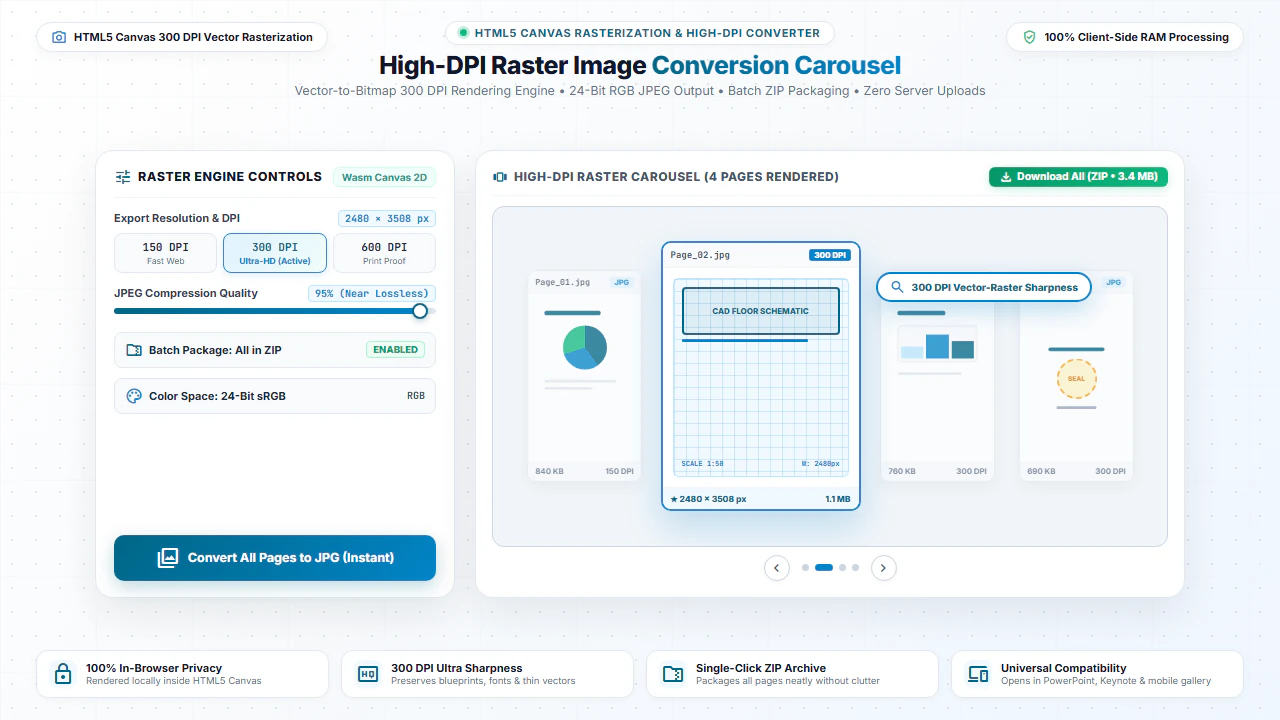
When you convert a PDF into JPG images, our client-side conversion engine parses the vector instructions, embedded fonts, and graphics of each page using HTML5 Canvas rendering. Each page is rasterized at high resolution (up to 300 DPI) and compressed into standard JPEG image streams.
This process preserves font sharpness, line diagrams, signatures, and photographic elements with rich color accuracy, making the images suitable for both digital displays and print reproductions.
Why Convert PDF Pages to JPG Images?
Slide Presentations & Decks
Insert PDF reports, financial graphs, and brochures directly into PowerPoint, Google Slides, or Keynote.
Social Media & Messaging
Share infographics, certificates, and announcements on LinkedIn, Twitter, Instagram, or WhatsApp where PDF previews aren't supported.
Website & Blog Publishing
Embed document excerpts into blog posts and landing pages without forcing visitors to download entire PDF files.
Graphic Design & Video Editing
Import vector artwork, mockups, and client proofs into popular graphic design software, image editors, Premiere Pro, or Canva.
Step-by-Step: How to Convert PDF to JPG in 4 Steps
- Step 1: Choose or Drag & Drop: Drag your PDF file or click Choose PDF to select your document.
- Step 2: Choose Quality: Select High quality (0.92) for archival sharpness or Balanced for web sharing.
- Step 3: Convert in Browser: Click Convert PDF to JPG to render each page into a crisp image locally.
- Step 4: Download Images: Download your individual JPG image or full ZIP package with zero cloud delays.
- Step 1: Tap to Select: Tap Choose PDF to pick your document from your mobile files.
- Step 2: Select Preset: Choose your preferred image quality preset.
- Step 3: Process Locally: Tap Convert PDF to JPG to generate photos directly on your smartphone.
- Step 4: Save to Photos: Save images to your Photos app or download as a ZIP archive.
100% Client-Side Privacy: No Server Uploads
Many online converters upload your personal documents, tax receipts, and sensitive legal filings to third-party cloud servers. This presents severe data confidentiality and compliance risks.
EditScannedPDF.com performs all image rasterization 100% inside your local web browser. Your documents are never transmitted over the internet, and no copies are stored on external hardware.
Comparison: EditScannedPDF vs. Traditional Cloud Tools
Understanding how our in-browser WebAssembly architecture protects your sensitive documents compared to legacy cloud PDF converters:
Enterprise-Grade In-Browser Security Architecture
When working with sensitive contracts, financial spreadsheets, medical records, or identity credentials, uploading files to third-party web servers introduces major cybersecurity risks. EditScannedPDF solves this fundamental vulnerability by executing all PDF compilation, vector synthesis, and cryptographic operations directly inside your device's browser memory using WebAssembly.
Your documents never travel across the internet, are never indexed on remote hard drives, and leave zero data footprint behind once you close your browser tab. Experience complete operational privacy built from the ground up to satisfy modern corporate security protocols.
Frequently Asked Questions (FAQ)
How do I convert a multi-page PDF into separate JPG images?
Upload your PDF file in the converter above and click Convert to JPG. Our tool will render each page individually and download them as high-quality image files or a bundled ZIP archive.
Is there any quality loss during PDF to JPG conversion?
No. We render the PDF canvas using high-DPI scaling (up to 300 DPI) to ensure sharp text edges, clear diagrams, and rich color reproduction.
Can I convert scanned PDFs to JPG?
Yes! Both digital vector PDFs and scanned image PDFs can be converted to JPG images with equal fidelity.
Are my files uploaded to your cloud servers?
No. All rendering and image encoding happens 100% locally inside your web browser via PDF.js. Your documents remain completely confidential.