
1. Architectural Foundations: Why Scanned PDFs Block Direct Text Typing
If you've ever tried to fill out a scanned form—such as a lease contract, bank verification letter, or medical authorization—you know the frustration when standard desktop viewers treat the page as a flat picture. Clicking on a blank field doesn't place a text cursor; it selects the entire scanned image block or does nothing at all.
This occurs because of a foundational distinction in document serialization under the ISO 32000-1 specification published by the PDF Association:
- Native Digital PDFs: Generated directly by word processors (Microsoft Word, Google Docs, or LaTeX). They contain selectable digital characters, embedded font outlines (TrueType and OpenType), and precise typographic positioning coordinates that standard PDF readers can highlight and edit.
- Scanned Image PDFs: Produced by physical scanner optics, office copiers, or smartphone cameras. They consist entirely of flat photographic pixel grids wrapped inside a PDF wrapper. Because there are no digital character codes or fillable fields, traditional readers cannot position a typing cursor on the page.
When you use conventional online tools, they force you through a lossy optical character recognition (OCR) conversion pipeline. This process attempts to reconstruct the entire page as an editable Word file, which almost always destroys complex form grids, alters table borders, substitutes fonts erratically, and transmits sensitive confidential documents across remote third-party cloud servers.
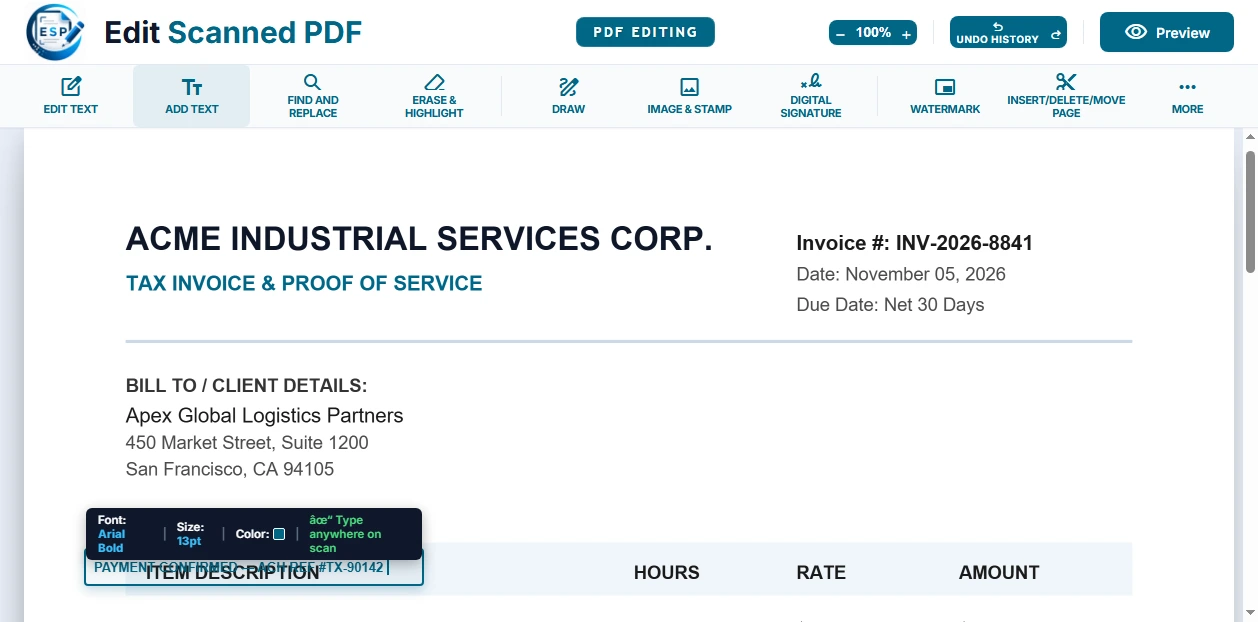
EditScannedPDF.com solves this architectural limitation through client-side HTML5 Canvas and W3C WebAssembly vector compositing. Instead of attempting a destructive conversion, our engine renders the scanned raster page as an immutable background layer and initializes a high-precision typographic coordinate overlay directly above it in client browser RAM.
2. 4 Steps to Add Text to Any Scanned PDF Online (Step-by-Step)
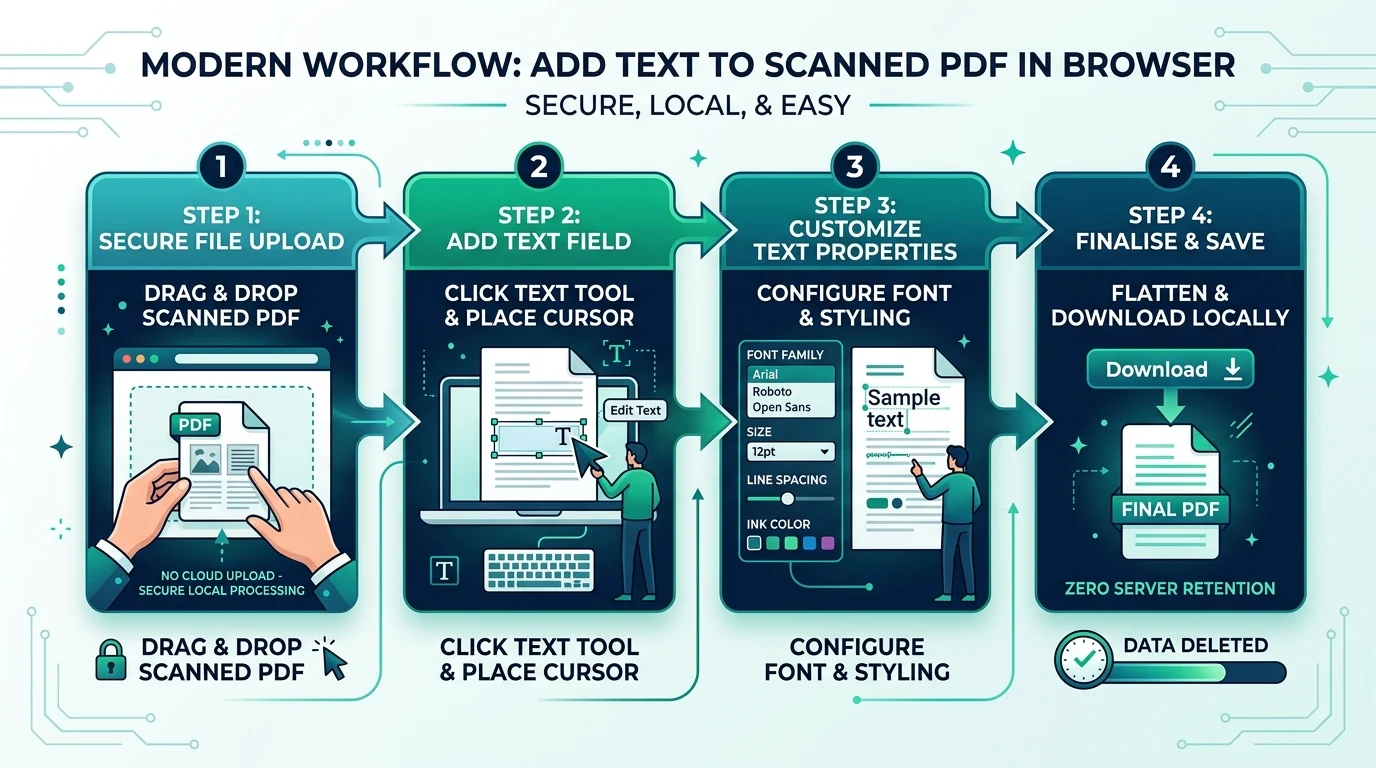
Adding text or typing onto a scanned PDF with EditScannedPDF.com requires zero registration, no software downloads, and no credit card. Follow these simple steps to type directly onto your scanned document inside your browser:
Upload Scanned PDF
Open the free Add Text to PDF Tool and drag your document into the canvas. The file loads instantly in local device RAM with zero cloud transmission.
Click to Place Text Box
Click anywhere on the document where you need to add text. An active text bounding box appears instantly, ready for typing form fields, notes, or dates.
Match Font, Size & Color
Choose from standard document typefaces (Helvetica, Times, Courier), calibrate font size, and adjust text color so new words blend naturally with original scan toner.
Export Flattened PDF
Click Export PDF. The client-side WebAssembly engine compiles your vector text directly into the page stream, generating an unshifted, print-ready document.
3. Micro-Typographic Matching: Harmonizing Inserted Text with Vintage & Modern Scans
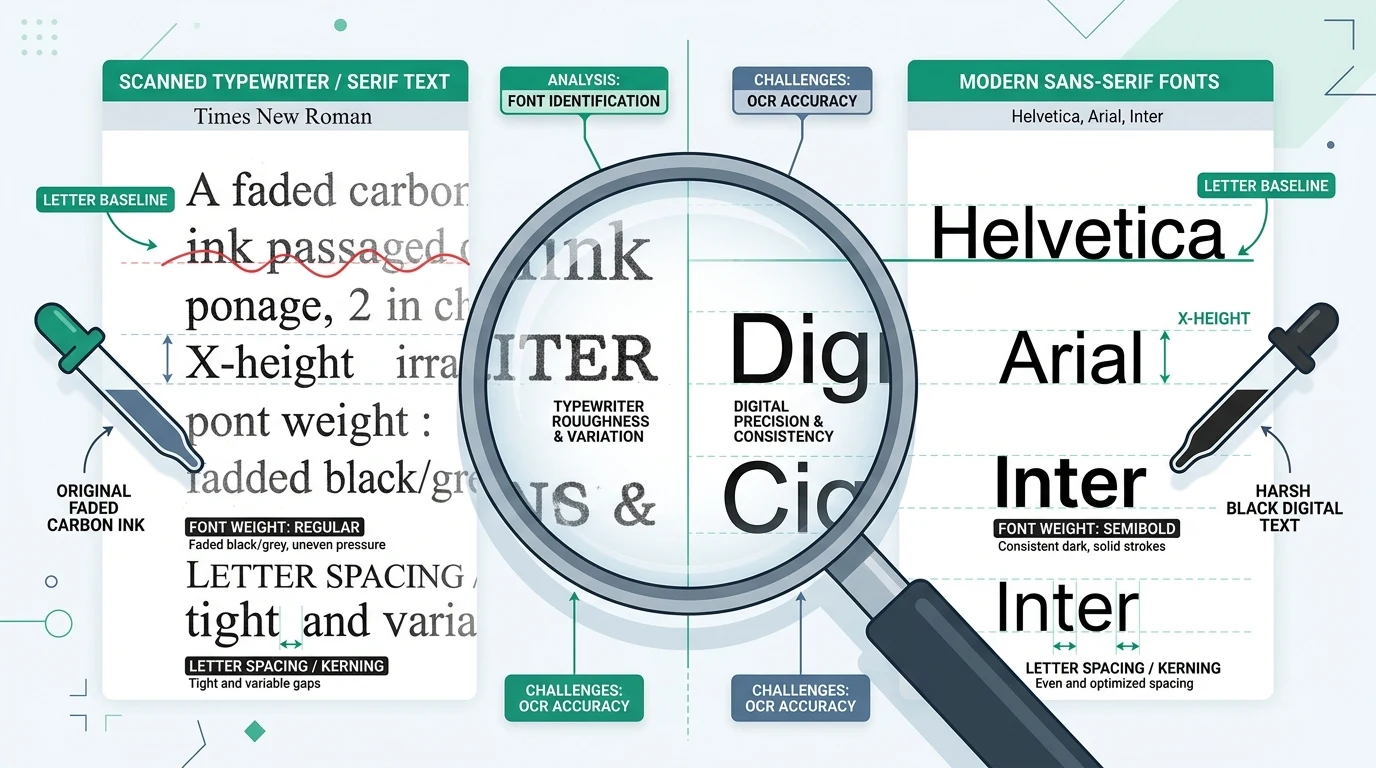
When filling out government forms, historical land records, or legal affidavits, simply adding bright black Arial text over a 300 DPI scanned document immediately flags the document as visibly doctored or poorly edited. To ensure institutional compliance and visual harmony, professional document engineers focus on five micro-typographic parameters:
- Stroke Weight & Optical Density: Scanned toner particles bleed into paper fibers. Pure vector text with sharp #000000 black looks artificial. Adjusting your text color to charcoal tones like
#1E2329or#2C3437blends directly with scanned ink. - Baseline Alignment (X-Height Matching): Align the bottom edge of lowercase letters ('x', 'm', 'n') precisely along the pre-printed baseline of the form. Use 1px micro-nudging via arrow keys.
- Kerning & Letter Spacing (Tracking): Typewriter-produced forms require monospaced fonts (Courier Prime, Roboto Mono) with fixed 0.1em character spacing, whereas modern print requires proportional tracking.
- Font Category Pairing:
- Government & Legal Certificates: Times New Roman, Garamond, Georgia (Serif class).
- Corporate & Invoicing Forms: Helvetica, Arial, Roboto, Inter (Sans-Serif class).
- Pre-2000s & Typewriter Forms: Courier, Consolas, Prestige Elite (Monospace class).
- Anti-Aliasing Subpixel Smoothing: Applying slight 0.2px edge softening prevents vector glyphs from looking unnaturally sharp against paper grain textures.
4. Architectural Comparison: WebAssembly vs Cloud SaaS vs OCR Conversion
Choosing the right method for adding text to scanned documents is vital for privacy, visual fidelity, and workflow velocity. Here is how client-side WebAssembly text synthesis compares against legacy alternatives:
| Evaluation Parameter | EditScannedPDF (Client WASM) | Cloud PDF Editors (Server SaaS) | OCR to Word Conversion |
|---|---|---|---|
| Data Security & Privacy | 100% Client-Side (Zero Server Uploads) | High Risk (File uploaded to 3rd party server) | High Risk (Stored on cloud OCR engine) |
| Document Layout Integrity | 100% Exact Pixel Retention (Original Scan Preserved) | Moderate (May shift during re-render) | Severe Degradation (Broken tables, shifted headers) |
| Typographic Customization | Full Hex Color, Serif/Sans/Mono, Subpixel Nudge | Limited Standard Fonts Only | System Fonts (Subject to local OS availability) |
| Processing Speed | Instant (<50ms local execution) | Slow (Network upload + queue latency) | Slow (OCR extraction + doc conversion time) |
| Compliance (HIPAA / GDPR) | Full Compliance (No data transit across wire) | Requires Signed BAA / DPA Agreements | Requires Vendor Security Certification |
| Cost & Licensing | Free Forever (No Paywalls or Subscriptions) | Recurring Monthly Fees ($15–$30/mo) | High Desktop License Costs ($179+) |