
Convert PDF to Black & White Online Free — Save Printer Ink
Convert colored PDFs to ink-saving 256 grayscale, eradicate murky mobile camera shadows with adaptive contrast binarization, or invert contrast for low-light reading. Everything processes 100% locally in your browser memory with zero cloud uploads.
Select or Drop PDF Document Here
100% In-Browser RAM Execution • Fast ITU-R BT.601 & Adaptive Contrast Binarizer
Interactive PDF Grayscale & Contrast Studio
🎉 Your PDF Has Been Successfully Converted!
🔒 100% Private & In-Browser: Files are processed locally on your device and never uploaded to any server. Please edit only documents you own or are authorized to modify. Compliance Policy
Real-World PDF Grayscale, Clean Scan & Binarization Scenarios
Whether you need to reduce commercial printing costs, eradicate shadowy scanner creases from loan applications, or satisfy court filing standards, converting your documents to high-contrast black-and-white solves real operational challenges:
Commercial Office Printer Toner & Ink Reduction
Printing a thick 200-page academic thesis, annual financial report, or commercial contract in full color quickly empties expensive cyan, magenta, and yellow toner cartridges. Converting to 256 Economy Grayscale slashes cartridge replacement costs by up to 60% while maintaining crisp, smooth charts and figures.
Smartphone Camera Shadows & Yellow Paper Removal
Smartphone photo captures of bills, receipts, and handwritten notes frequently suffer from dark overhead lighting shadows, hand reflections, and yellowish incandescent tint. Our Clean Scan adaptive contrast filter forces the background to 100% pure white (#FFFFFF), producing pristine photocopies.
US Federal Court CM/ECF Monochrome Filing Standards
Federal courts, state judicial portals, and government archive repositories enforce strict CM/ECF standards requiring exhibits to be submitted in pure black-and-white. Binarizing removes color noise, reduces electronic file transmission sizes, and ensures rapid judicial acceptance without clerk rejection.
Nighttime Technical Reading & OLED Eye-Strain Relief
Reading bright white technical PDFs, documentation, and academic papers late at night causes severe eye fatigue and blue light exposure. Invert / Dark Mode swaps white backgrounds to deep midnight black and text to sharp white, delivering a soothing reading experience that conserves battery on OLED displays.
How to Convert Color PDF to Grayscale & Save up to 60% Toner
In-depth guide on eliminating silent color cartridge depletion, clean scan contrast binarization, and US federal court CM/ECF monochrome filing rules.
How to Convert PDF to Grayscale and Clean Black & White in 4 Easy Steps
Follow our comprehensive step-by-step workflow to convert and binarize your document locally in browser RAM:
-
Step 1: Open Your Scanned or Color PDF in Browser RAM
Click Select PDF file or drag your document into the upload dropzone. PDF.js loads the document pages directly into device memory and renders an instant live preview. Zero bytes of your file are transmitted to external cloud servers.
-
Step 2: Select Visual Processing Mode (Grayscale, Clean Scan, or Invert)
Choose Economy Grayscale for smooth continuous gray tones that preserve illustrations, Clean Scan for high-contrast binarization that removes mobile shadows and paper stains, or Invert Dark Mode for low-light night study.
-
Step 3: Fine-Tune Contrast Cutoff & Searchable Text Layer
If your document contains faint pencil handwriting or light stamps, adjust the threshold cutoff slider to capture every character. Ensure Preserve Searchable Text is enabled to maintain underlying selectable OCR text.
-
Step 4: Render Document & Download Instant Black-and-White PDF
Click Convert PDF to Grayscale. Our in-browser WebAssembly canvas engine processes all pages in parallel, assembling a high-resolution print-ready document ready for immediate download and zoomable inspection.
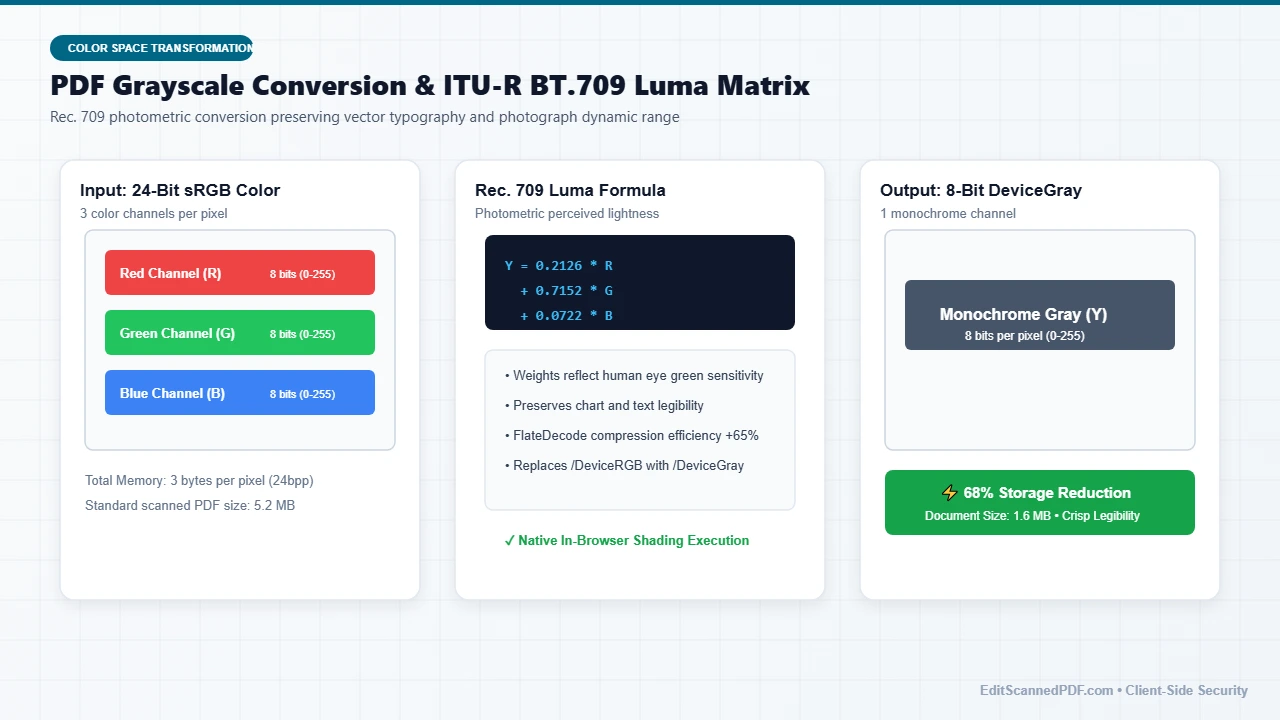
Office Printer Ink & Toner Savings: Avoiding the "Composite Black" Cartridge Drain
Many office administrators and home office workers are shocked to discover that printing a standard black-and-white scanned PDF on a color laser or inkjet printer rapidly drains expensive Cyan, Magenta, and Yellow toner cartridges. This happens because modern print drivers default to 'Composite Black'—mixing all color inks to achieve rich dark tones on scanned papers with faint colored backgrounds.
Converting your scanned documents using EditScannedPDF's Rec. 709 Grayscale Engine eliminates all color chrominance channels at the source. Your printer driver recognizes the file as pure single-channel monochrome, forcing the printer to consume solely the high-yield Black toner cartridge and reducing your ongoing printing and cartridge replacement expenses by up to 60% to 75%.
Printer Ink & Toner Savings Comparison: Color vs. Grayscale vs. Clean Scan
Compare printer toner consumption and document properties across our three visual processing modes:
Tool Comparison: EditScannedPDF vs. Paid PDF Software
Compare our 100% private in-browser grayscale converter with costly desktop software and subscription websites:
Frequently Asked Questions
What is the difference between Economy Grayscale and Clean Scan Binarization?
Economy Grayscale converts colored documents into 256 smooth continuous gray shades using the ITU-R BT.601 standard luminance formula (0.299*R + 0.587*G + 0.114*B), preserving photo textures while slashing printer color ink consumption by up to 60%. Clean Scan is an adaptive contrast binarizer that calculates an optimal brightness threshold per page, forcing all background paper noise, shadows, and yellow tints to 100% pure white (#FFFFFF) and all text characters to crisp deep black (#000000).
How much printer ink and toner can I save by converting a PDF to grayscale?
Printing a standard full-color PDF on a laser or inkjet printer consumes cyan, magenta, and yellow cartridges in addition to black toner. By converting to Economy Grayscale or Clean Scan Binarized black-and-white, your printer only uses monochrome black toner, cutting commercial printing and cartridge replacement expenses by 50% to 75% on thick multi-page reports, legal filings, and manuals.
Why do US Federal Court CM/ECF and government portals require black-and-white PDFs?
US Federal Court CM/ECF guidelines, patent offices (USPTO), and state licensing repositories mandate black-and-white documents because color scan backgrounds contain massive amounts of noisy, irregular pixel data that bloat file sizes and degrade automated archival OCR systems. Our Clean Scan binarization mode conforms to US Court filing requirements by producing pure high-contrast black-and-white pages.
How does the Clean Scan binarization filter eliminate yellow paper tints and mobile shadows?
When photographing or scanning old contracts, receipts, or textbooks, camera shadows and aged paper pulp create murky yellow or gray backgrounds. Our adaptive contrast filter analyzes page luminance levels to automatically separate foreground letterforms from ambient background gradients, clamping all non-text pixels to pure uniform white.
Will converting my PDF to grayscale or black-and-white damage my searchable text layer?
No. When the Preserve Searchable Text toggle is enabled, our client-side engine extracts underlying digital text streams, font metrics, and coordinates via PDF.js, and embeds an invisible OCR text layer matching the exact geometry of your original document. You can still highlight text, copy paragraphs, and search keywords with Ctrl+F.
Are my sensitive legal, medical, or financial documents uploaded to any web servers?
Never. All image processing, luminance transformations, adaptive contrast evaluations, and PDF assembly happen 100% locally in your web browser memory (RAM) through WebAssembly and HTML5 Canvas. Zero bytes of your file leave your device, ensuring total compliance with HIPAA, GDPR, attorney-client privilege, and NDA requirements.
Can I fine-tune the contrast threshold if faint pencil or handwriting gets washed out?
Yes. Our Grayscale Studio includes an interactive threshold fine-tuning slider ranging from 80 to 240. If your document contains faint pencil annotations or light blue pen ink, simply move the slider toward 140 (Light Notes) to capture every stroke. If heavy paper bleed-through is visible, slide toward 215 to eliminate background shadows.