Online Scanned PDF Editor with In-Browser OCR
Modify text, correct numbers, match fonts, and redact sensitive information in scanned PDFs directly inside your web browser. Powered by cutting-edge client-side OCR technology, your documents are processed 100% privately in local browser memory—files are never uploaded, stored, or viewed on remote servers.
Select any scanned PDF to open the interactive OCR editor directly.
Only edit documents that you own or are legally authorized to modify. Do not use this website to alter documents for fraud, misrepresentation, identity misuse, or any illegal purpose. You are fully responsible for how you use edited documents; Edit Scanned PDF is not responsible for unlawful or unauthorized use. Read More
Helpful Guides & Tutorials
What Makes Our Scanned PDF Editor Truly Different?
If you have ever attempted to edit a scanned invoice, legal lease, receipt, or old academic transcript using standard online tools (such as Standard Cloud Converters, Traditional Cloud Editors, or basic browser viewers), you have undoubtedly hit a brick wall. Standard tools typically inform you that "this page contains only an image" or require an expensive monthly subscription to unlock optical character recognition.
EditScannedPDF.com was built from the ground up to solve the scanned document problem:
- Specialized OCR Engine: We don't just paste floating text boxes over your document. Our WebAssembly OCR engine detects existing letterforms, locates baseline alignments, and allows true in-place text replacement.
- 100% In-Browser Privacy: Unlike traditional web editors that beam your confidential contracts to cloud data centers, our editor runs entirely inside your browser's local sandbox. Zero bytes leave your device.
- Works Where Others Fail: We have tested skewed scans, low-resolution receipts, camera snapshots, and vintage certificates that fail on major competitor platforms—and they open seamlessly here.
- No Artificial Restrictions: Enjoy completely free editing without forced account registrations, daily quotas, or credit card requirements.
What is a Scanned PDF & Why Do Standard Editors Fail?
To understand how to modify a scanned PDF, it is essential to understand the technical difference between a digital PDF and a scanned PDF:
1. Digital (Native) PDFs: When you export a document from Microsoft Word, Google Docs, or Canva, the PDF file contains encoded digital character vectors and embedded typography fonts. When you click on a word, the software reads the character index (e.g., Unicode 0x0041 for 'A') and lets you type immediately.
2. Scanned (Raster Image) PDFs: When a physical piece of paper is passed through an office scanner or photographed with a smartphone, the output file contains no digital characters whatsoever. It is simply a container holding a high-resolution raster photograph (millions of coloured pixels arranged in a grid). To a standard PDF viewer, a sentence of text is indistinguishable from a picture of a tree or a coffee stain.
When you attempt to click scanned text in standard editors, the cursor only drags the entire background image. Our Advanced Optical Character Recognition (OCR) bridges this gap by scanning the raster image matrix, identifying individual letter contours, estimating font sizes and weights, and building an interactive vector text layer directly over the original page pixels.
Step-by-Step Guide: How to Edit Scanned PDF Text Online
- Step 1: Open Document Scan: Click Browse Scanned PDF or drag your file into the window to load in local RAM.
- Step 2: Detect Text Layers: Select the OCR detect tool. The client-side vision engine highlights editable character blocks.
- Step 3: Click to Edit Text: Click directly on any word, typo, or number to backspace and type corrected text with font matching.
- Step 4: Download Clean PDF: Preview the document layout in high resolution and click Download PDF.
- Step 1: Tap to Browse: Tap Browse Scanned PDF to select your document scan from Files or Google Drive.
- Step 2: Tap Text to Edit: Tap on the text or number you need to modify on your mobile screen.
- Step 3: Adjust Size & Style: Use the mobile typography tools to match font size and color.
- Step 4: Save to Device: Tap Download PDF to save your edited file directly to your phone storage.
10 Advanced Capabilities of Our In-Browser PDF Editor
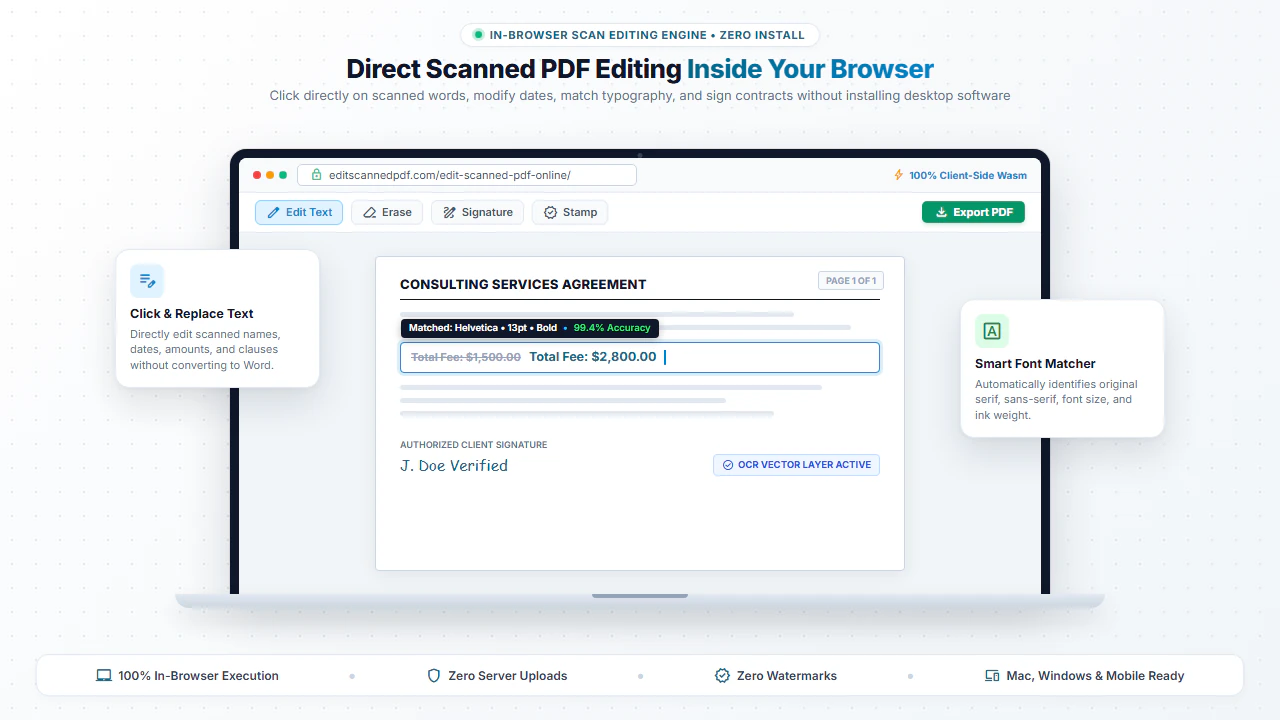
1. In-Place Text Editing
Directly modify dates, invoice amounts, spelling typos, and names without converting the file to Word first.
2. Intelligent Font Matching
Automatically suggests matching typography styles (Serif, Sans, Monospace) to preserve original formatting.
3. Erase & Whiteout Redaction
Block out confidential numbers, account details, or outdated clauses with precise color-matched redaction boxes.
4. Electronic Signatures
Draw, type, or upload custom digital signatures to sign contracts and legal agreements without printing.
5. Multi-Page Synchronization
Place stamps, watermarks, or page numbers on one page and instantly replicate them across all document pages.
6. Scanned to Searchable PDF
Generate invisible searchable text layers so you can Ctrl+F search, highlight, and copy text from scanned archives.
7. Image & Stamp Insertion
Insert company logos, official seal stamps, signature graphics, and photos anywhere on the scanned page.
8. Page Organization
Rotate upside-down pages, delete unwanted scans, reorder pages, or insert new pages into existing PDF files.
9. Skew & Alignment Correction
Fine-tune text box rotation angles to match crooked or tilted scans from handheld mobile cameras.
10. Zero-Upload Privacy
All processing is executed in local browser memory. No files are stored or transmitted across external networks.
Comparison: EditScannedPDF vs. Traditional Online PDF Editors
See how our browser-based approach compares against traditional cloud-based alternatives:
Everyday Document Workflows & Real-World Use Cases
Our users rely on EditScannedPDF.com for a wide spectrum of essential business and personal workflows:
- Correcting Scanned Invoices and Receipts: Update billing addresses, vendor phone numbers, or correct itemized calculation errors before submitting records to accounting.
- Updating Legal Contracts and Leases: Amend typographical errors in landlord-tenant agreements, modify effective dates, or insert missing annexures without retyping the entire agreement.
- Redacting Confidential Information: Black out Social Security numbers, bank account figures, or personal health records before sharing documents with third parties.
- Signing Scanned Paperwork: Sign job offer letters, non-disclosure agreements (NDAs), and school permission slips electronically without wasting paper and printer ink.
- Digitizing Old Paper Archives: Turn boxes of physical paper records into digital, searchable PDF archives that can be searched instantly using
Ctrl+F.
Pro Tips for Achieving 100% OCR Character Accuracy
To get the cleanest, most accurate text detection results when working with scanned documents, follow these industry recommendations:
- Scan at 300 DPI or Higher: Scans captured at 300 DPI (dots per inch) provide optimal contrast between character edges and background paper grain, minimizing letter confusion.
- Ensure Uniform Lighting: When photographing documents with a mobile phone camera, avoid harsh shadows and glare. Use flat, overhead lighting.
- Straighten Crooked Pages: If a document is scanned at an extreme diagonal angle, use our Rotate tool or deskew adjustments before running text detection.
- Use High-Contrast Black & White: For standard text documents, grayscale or black-and-white scan modes often yield faster, sharper OCR recognition than full-color photos.
Frequently Asked Questions (FAQ)
How does online scanned PDF editing work?
Our tool applies client-side browser-based OCR (Optical Character Recognition) using WebAssembly. It analyzes the visual image pixels of your scanned document, detects characters and font styles, and generates editable text blocks directly inside your web browser.
Why can't standard PDF editors edit scanned PDF text?
Standard PDF editors treat documents as collections of digital character codes. Scanned PDFs, however, are flat photograph images of paper without underlying text data. Without OCR technology to interpret image shapes into characters, clicking the page only selects the background image.
Is my document uploaded to a remote server?
No. EditScannedPDF.com is 100% client-side. All OCR computation, font synthesis, and PDF assembly happen locally in your web browser's memory. Your files are never transmitted to or stored on any external server.
Can I match the exact font and style of the original scanned document?
Yes. Our OCR editor detects standard font classifications (Serif, Sans-Serif, Monospace) and allows you to adjust font size, weight, letter spacing, and color so your edits match the original scanned document seamlessly.
Can I erase or white out text in a scanned PDF?
Yes. You can use our Erase & Highlight tool to draw solid white or color-matched boxes over confidential information, old dates, or incorrect invoice totals before inserting new text.
Do I need to pay or create an account to edit scanned PDFs?
No. Our core scanned PDF editing tools are free to use without requiring credit card details, software installations, or forced account creation.
Does this tool work on mobile phones and tablets?
Yes. Because EditScannedPDF.com operates entirely within modern web browsers, you can edit scanned documents seamlessly on iOS (iPhone/iPad), Android, Mac, Windows, and Chromebook devices.
Can I edit multi-page scanned documents?
Yes. You can navigate through all pages of your multi-page scanned document, run OCR on individual pages or the entire file, reorder pages, and export the complete edited PDF. You can also read our complete walkthrough on how to edit a scanned PDF document.