Draw on PDF Online Free
Sketch freehand notes, draw arrows, circle important figures, and add annotations directly on digital or scanned PDF documents in your browser. Fast, responsive, and 100% private.
Choose a scanned or normal PDF to open the interactive editor with the Draw tool ready.
Only edit documents that you own or are legally authorized to modify. Do not use this website to alter documents for fraud, misrepresentation, identity misuse, or any illegal purpose. You are fully responsible for how you use edited documents; Edit Scanned PDF is not responsible for unlawful or unauthorized use. Read More
Helpful Guides & Tutorials
You can draw freehand, circle key paragraphs, sketch arrows, and annotate scanned documents online for free using EditScannedPDF.com Drawing Tool. Choose stroke width, custom pen colors, highlighter modes, and geometric shapes to mark up PDFs directly on your canvas with zero server uploads.
How Browser-Based PDF Drawing Works
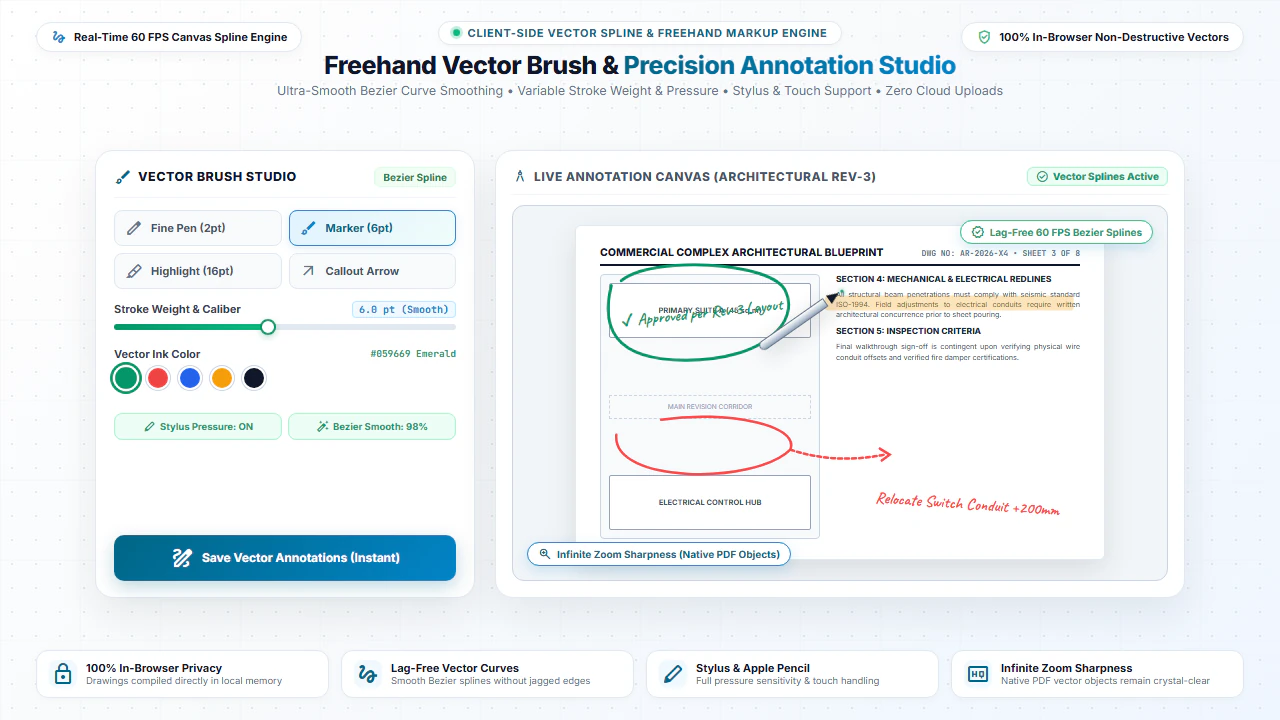
Drawing on a PDF embeds smooth vector bezier paths and raster brush strokes directly onto the document canvas. Our editor captures high-frequency touch and pointer events to deliver lag-free freehand sketching.
Upon document export, your sketches are compiled natively into PDF graphic vector objects, ensuring your lines remain perfectly sharp and crisp when zoomed, printed, or shared.
Precision Pen & Drawing Controls
Variable Stroke Width
Adjust line weight from a delicate 1px fine pen to a bold 20px felt-tip marker.
Full Color Palette
Choose from standard markup colors (red, blue, green, black) or pick custom hex colors.
Stylus & Touch Support
Full compatibility with Apple Pencil, Surface Pens, Wacom tablets, and mobile touchscreens.
Undo & Redo History
Instantly correct drawing mistakes with quick multi-level undo and redo actions.
Step-by-Step: How to Draw on a PDF in 4 Steps
- Step 1: Open Your PDF: Click Draw on Scanned PDF or Draw on Normal PDF to open your document.
- Step 2: Configure Brush: Select your stroke width, ink color, and opacity from the drawing palette.
- Step 3: Draw on Canvas: Use your mouse or stylus to draw freehand arrows, circle figures, or add handwritten notes.
- Step 4: Download PDF: Click Download PDF to save your annotated document.
- Step 1: Tap to Select: Tap Draw on Scanned PDF to select your document from mobile files.
- Step 2: Choose Touch Pen: Select your drawing color and brush thickness.
- Step 3: Draw with Finger or Stylus: Annotate directly on your phone or tablet screen.
- Step 4: Save to Device: Tap Download PDF to save the annotated document to your phone.
Everyday Scenarios for Drawing on PDFs
Grading & Student Feedback
Teachers can circle mistakes, write margin notes, and add checkmarks to student homework submissions.
Architectural & Blueprint Redlines
Engineers and architects can mark dimensions, draw routing arrows, and flag job site revisions.
Contract Review & Callouts
Draw circles around critical clauses and draw connecting arrows to explain contractual amendments.
Medical Charts & Dental Schematics
Doctors and dentists can mark diagrammatic charts and indicate anatomical treatment areas.
100% Client-Side Privacy: No Server Uploads
Engineering schematics, medical diagrams, and student assignments must remain confidential. Using cloud drawing tools creates privacy compliance risks.
EditScannedPDF.com renders and saves all drawings 100% locally in your web browser. Your documents never touch external servers.
Comparison: EditScannedPDF vs. Traditional Cloud Tools
Understanding how our in-browser WebAssembly architecture protects your sensitive documents compared to legacy cloud PDF converters:
Enterprise-Grade In-Browser Security Architecture
When working with sensitive contracts, financial spreadsheets, medical records, or identity credentials, uploading files to third-party web servers introduces major cybersecurity risks. EditScannedPDF solves this fundamental vulnerability by executing all PDF compilation, vector synthesis, and cryptographic operations directly inside your device's browser memory using WebAssembly.
Your documents never travel across the internet, are never indexed on remote hard drives, and leave zero data footprint behind once you close your browser tab. Experience complete operational privacy built from the ground up to satisfy modern corporate security protocols.
Frequently Asked Questions (FAQ)
Can I draw freehand with my mouse, stylus, or touchscreen?
Yes! Our drawing canvas supports mouse cursors, trackpads, stylus pens (Apple Pencil, Surface Pen), and fingertip touch drawing on mobile devices.
Can I adjust stroke width, opacity, and pen colors?
Yes. You can customize brush thickness from ultra-fine (1px) to heavy marker (20px), select any RGB color, and adjust opacity.
Can I draw on scanned paper documents and photo PDFs?
Yes! Freehand drawings and annotations render smoothly over scanned image layers as well as digital vector PDFs.
Are my drawings and documents saved on your cloud servers?
No. All drawing routines and PDF exports execute 100% locally in your web browser memory. Your documents are never uploaded to any remote server.