How to Convert PDF to JPG High Resolution Online Free (300 DPI Quality)
1. Why Government & Job Portals Demand High-Resolution JPG
When submitting online civil service applications, passport renewals, state licensure registrations, or commercial lease dossiers, applicants often encounter an unexpected roadblock: the intake portal explicitly prohibits PDF uploads and requires images formatted as JPG or PNG.
Enterprise and government verification systems enforce this requirement for specific architectural reasons:
- Automated OCR Ingestion: Government optical character recognition pipelines process pure pixel rasters faster and more reliably than multi-layer PDF vector containers.
- Facial & Signature Recognition: Identity verification algorithms require direct access to uncompressed image pixels to extract facial biometrics and match signature contours.
- Malware Prevention: Stripping the container layer eliminates potential PDF executable vulnerabilities (e.g., embedded JavaScript or malicious form actions).
2. How to Convert PDF to JPG High Resolution (Step-by-Step)
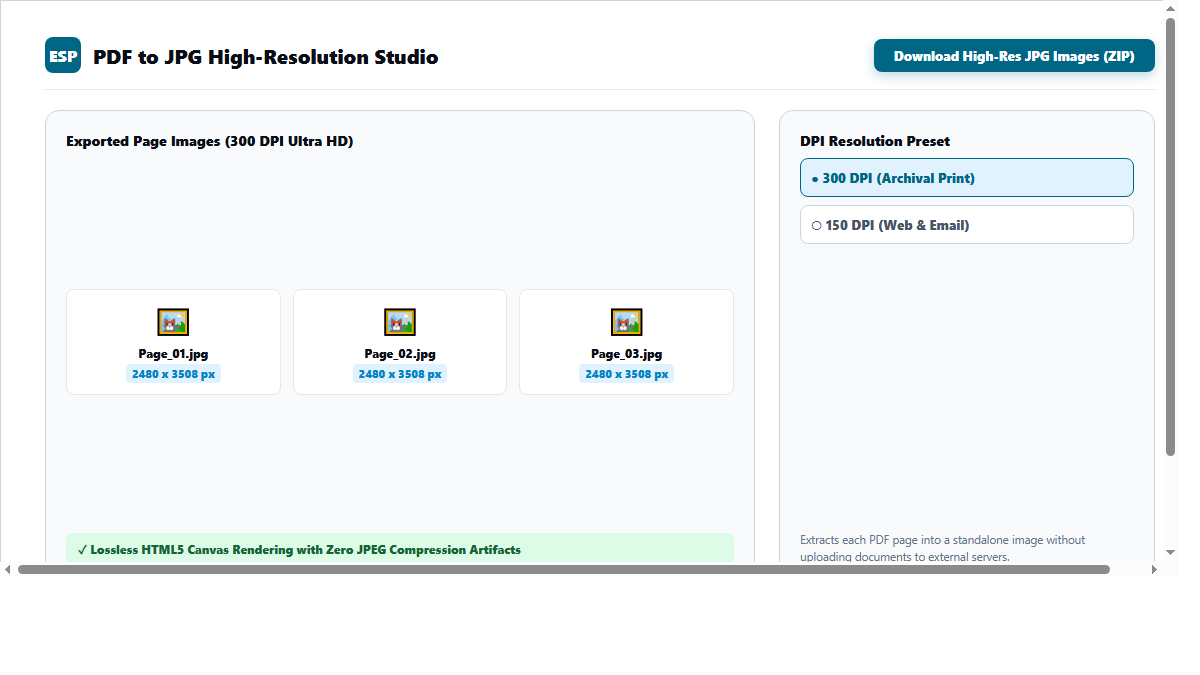
With EditScannedPDF.com, you can transform multi-page PDF documents into crystal-clear 300 DPI JPG images in four fast steps:
Upload to Browser Engine
Navigate to the free PDF to JPG tool and drop your PDF into the workspace. The file loads instantly in private browser memory.
Select 300 DPI Output
Choose high-density rendering (300 DPI / 3x scale) to rasterize fine text, government seals, and handwritten signatures cleanly.
Choose Pages to Extract
Select individual pages (e.g. front and back of an ID card) or choose 'All Pages' for complete multi-page document extraction.
Download JPG or ZIP
Click Convert to JPG. Download single pages immediately or save all pages bundled in a clean, organized ZIP archive.
3. Batch Converting Multipage PDFs into ZIP Archives
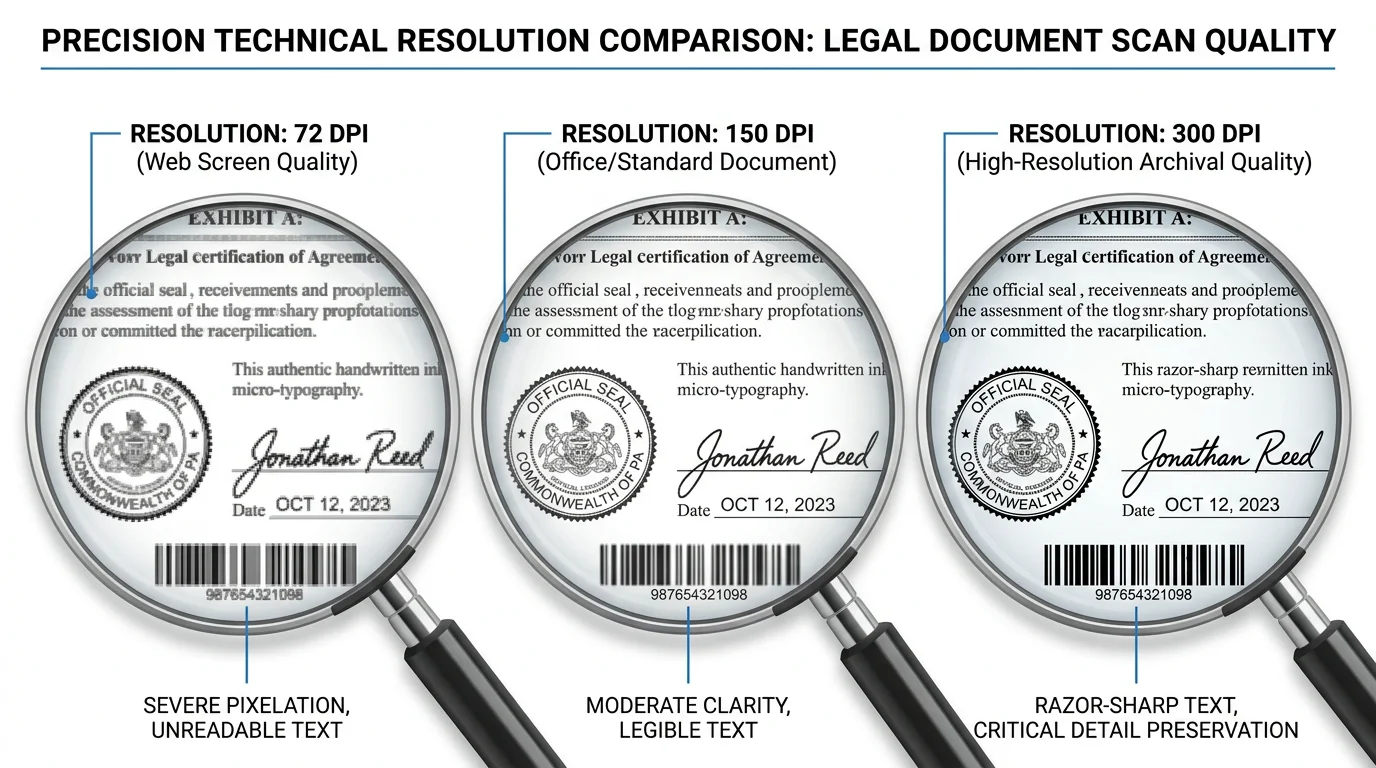
When dealing with lengthy 20-page contracts or multi-semester academic grade sheets, downloading 20 separate image files through individual browser prompts creates cluttered download folders and risk of missing pages.
Our client-side conversion engine automates the entire packaging workflow:
- Sequential Canvas Rasterization: The engine iterates through the PDF page tree, rendering each page at 300 DPI onto an offscreen HTML5 canvas buffer.
- Systematic Filename Formatting: Image files are named logically (e.g.
document-page-01.jpg,document-page-02.jpg) so file systems maintain exact reading order. - Client-Side ZIP Bundling: Images are compressed into a single
.ziparchive directly in your browser's memory without sending a single byte across the internet.
4. Resolution Comparison: 72 DPI vs 150 DPI vs 300 DPI Archival
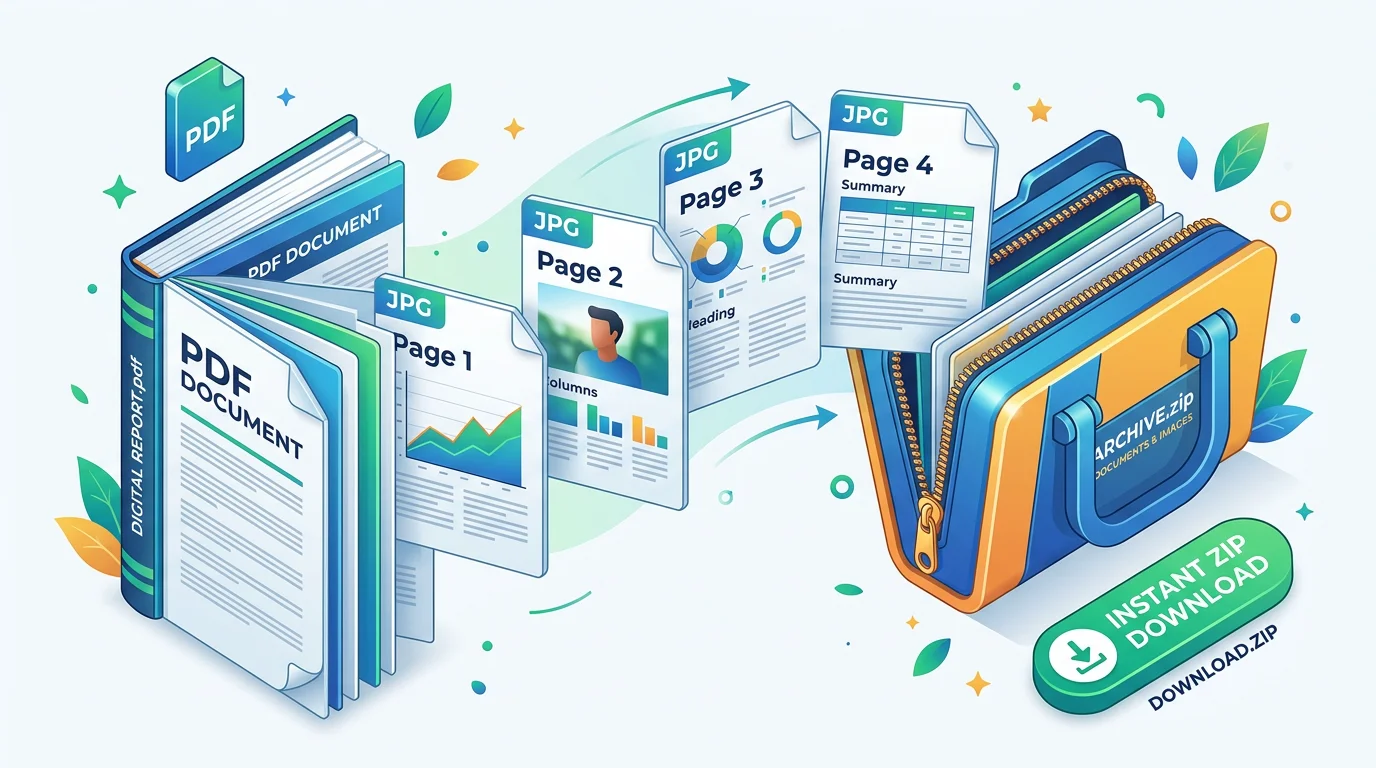
Selecting the appropriate resolution depends on whether you are preparing documents for screen viewing, email attachments, or official government verification:
| Resolution Profile | Pixel Dimensions (A4) | Typical File Size | Best Use Case |
|---|---|---|---|
| 72 DPI (Standard Web) | 595 × 842 px | ~100 KB – 250 KB | Blog previews, low-bandwidth web thumbnails |
| 150 DPI (Balanced Medium) | 1240 × 1754 px | ~400 KB – 800 KB | Email sharing, fast internal office reviews |
| 300 DPI (Archival & Legal) | 2480 × 3508 px | ~1.5 MB – 3.0 MB | Government portals, passport visas, court e-filing |
EditScannedPDF provides image extraction tools intended exclusively for legitimate document processing, identity card digitization, and administrative application workflows. Users must own or have legal authorization to convert and store the submitted documents. For complete compliance details, review our Terms of Service and Legal Disclaimer.
Related Step-by-Step PDF Guides
Edit Your Scanned PDF Online Free
Render crisp 300 DPI JPG images from your PDF pages. Preserve official seals, fine text, and signatures with 100% private W3C WebAssembly.
photo_library Convert PDF to JPG FreeWhen applying for passports, state licensure, or jobs, many portals reject PDF files and demand crisp, high-resolution JPG images. Taking low-quality screenshots produces blurry, rejected text. This guide shows you how to convert PDF pages directly into crystal-clear 300 DPI JPG images with true print resolution and automated multi-page ZIP downloads—100% free with complete privacy inside your browser.
- High-DPI Clarity: Render scanned PDF pages into crisp 300 DPI JPEG or WebP images suitable for archiving or printing.
- Selective Page Export: Extract individual pages, selected ranges, or the entire document into organized individual image files.
- Color Profile Integrity: Preserves true RGB color fidelity and sharp black-and-white line contrast for certificates and diagrams.
- Private Local Rasterization: Page rendering takes place in your browser engine without sending confidential files to remote conversion queues.
Related Scanned PDF Guides & Tools
5. Frequently Asked Questions (FAQ)
Why do my converted JPG images look blurry when taking screenshots of a PDF?
Screenshots only capture your screen's display resolution (usually 72 to 96 DPI), causing small text and detailed seals to pixelate. Our PDF to JPG converter directly renders the underlying PDF vectors and embedded scan matrices at 300 DPI (over 2400x3300 pixels per A4 page), preserving razor-sharp detail.
Why do government recruitment and visa portals require JPG instead of PDF files?
Many government, civil service, and consular portals use automated optical character recognition (OCR) and facial recognition engines that require direct, uncompressed image streams without the multi-layer container complexity of PDF documents.
How can I convert a multi-page PDF into separate JPG images at once?
Drop your multi-page PDF into the tool, select 'Convert All Pages', and click Export. The tool converts each page sequentially and automatically bundles them into a clean, single ZIP file for one-click downloading.
Are my sensitive identity cards, tax forms, or passport scans uploaded to external servers?
No. EditScannedPDF runs client-side inside your browser via WebAssembly and HTML5 Canvas. Your confidential ID scans, passport pages, and legal records are never uploaded to any remote cloud server.
What is the difference between 72 DPI, 150 DPI, and 300 DPI?
72 DPI is intended for low-bandwidth web displays but renders blurry text in print. 150 DPI is balanced for email sharing. 300 DPI is the archival print standard, ensuring fine fonts, official stamps, and barcodes remain perfectly legible.
How do I balance high resolution with strict portal file size limits (like 200KB or 500KB)?
If a government intake form enforces a strict maximum file size cap (e.g. 200KB), use 150 DPI or adjust the JPEG quality slider to 80%. This maintains sharp text readability while keeping the resulting file size within threshold.
Can I convert PDF pages to JPG on iPhone, iPad, or Android smartphones?
Yes. Our tool is fully responsive and compatible with mobile Safari, Chrome, and Firefox. You can convert documents and save image pages directly to your phone's photo library or Files app without installing third-party apps.