
How to Convert JPG to PDF and Combine Images Online Free (Multi-Photo Merge)
1. The Chaos of Submitting Loose Smartphone Photos
Smartphones are the world's most accessible document cameras. From handwritten college problem sets and multi-page lease agreements to business trip expense receipts and medical records, snapping photos is instantaneous.
However, submitting loose JPG or PNG files creates severe administrative and operational hurdles:
- Scrambled Page Order: File uploaders sort by image timestamp or alphabetical filename (e.g.
IMG_002.jpgbeforeIMG_001.jpg), jumbling homework problems or contract clauses. - Inconsistent Page Sizes: Photos captured at different zoom levels, angles, and aspect ratios look disorganized when opened by evaluators or clients.
- Portal File Restrictions: Many enterprise HR systems, court e-filing systems, and university portals block raw image formats entirely, accepting only standard PDF documents.
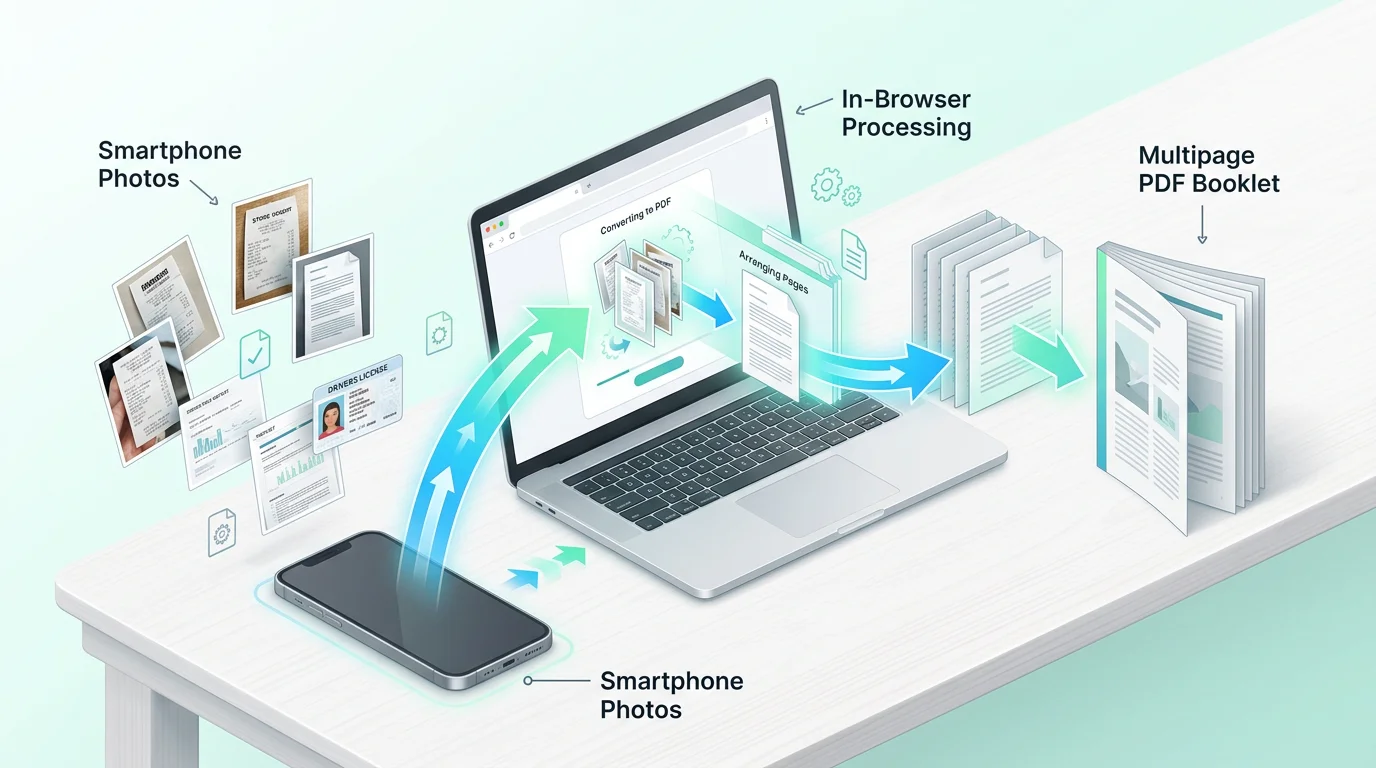
2. How to Convert JPG to PDF & Combine Images (Step-by-Step)
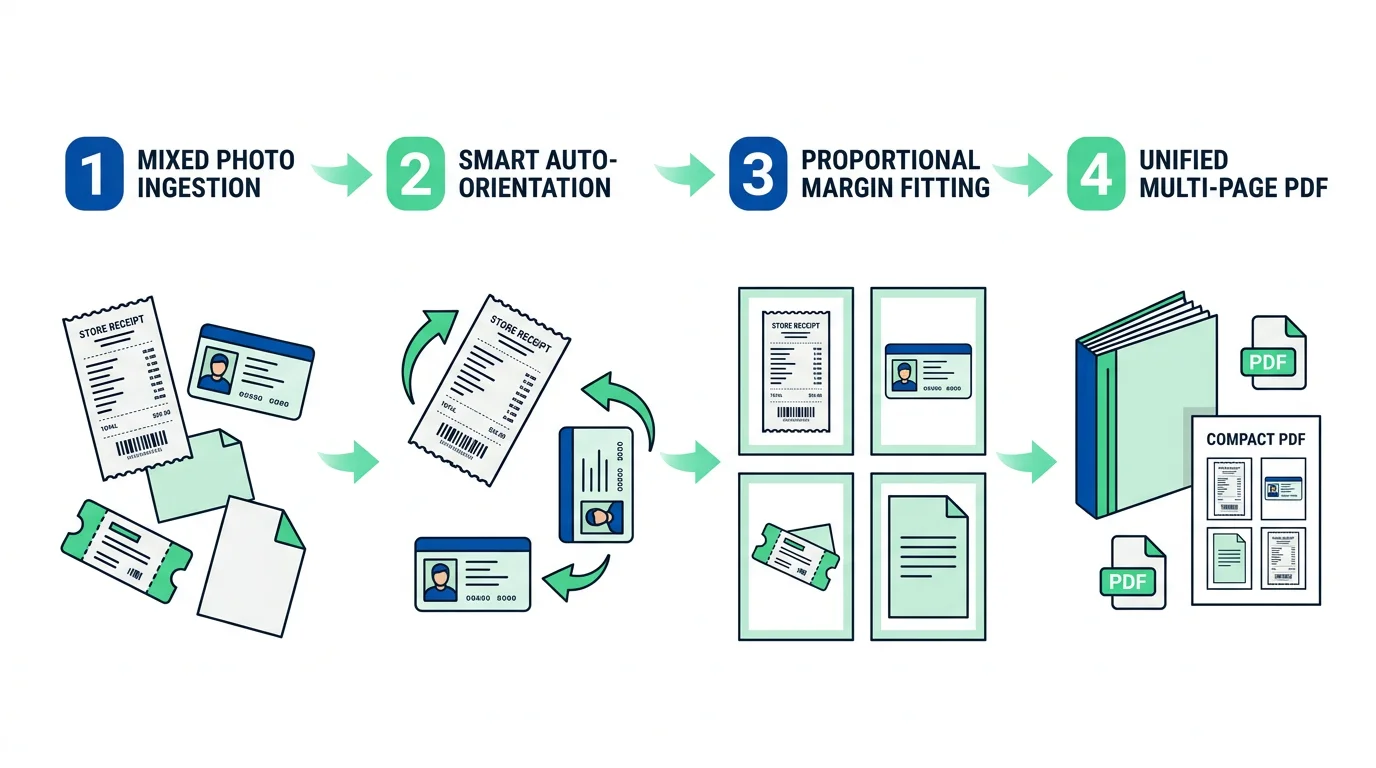
Follow these four straightforward steps to transform loose photos into a polished, print-ready PDF booklet:
Select Images
Open the free JPG to PDF tool and select all your photos (JPG, PNG, WebP) at once. Files load instantly into browser memory.
Reorder Pages
Drag and drop the visual image thumbnails to arrange your pages into exact numerical, chronological, or logical reading order.
Set Canvas & Margins
Select standard A4 or US Letter page size, configure narrow or clean margins, and choose portrait or landscape orientation.
Export Unified PDF
Click Convert to PDF. The W3C WebAssembly engine packages your photos into a crisp, unified PDF booklet ready to download.
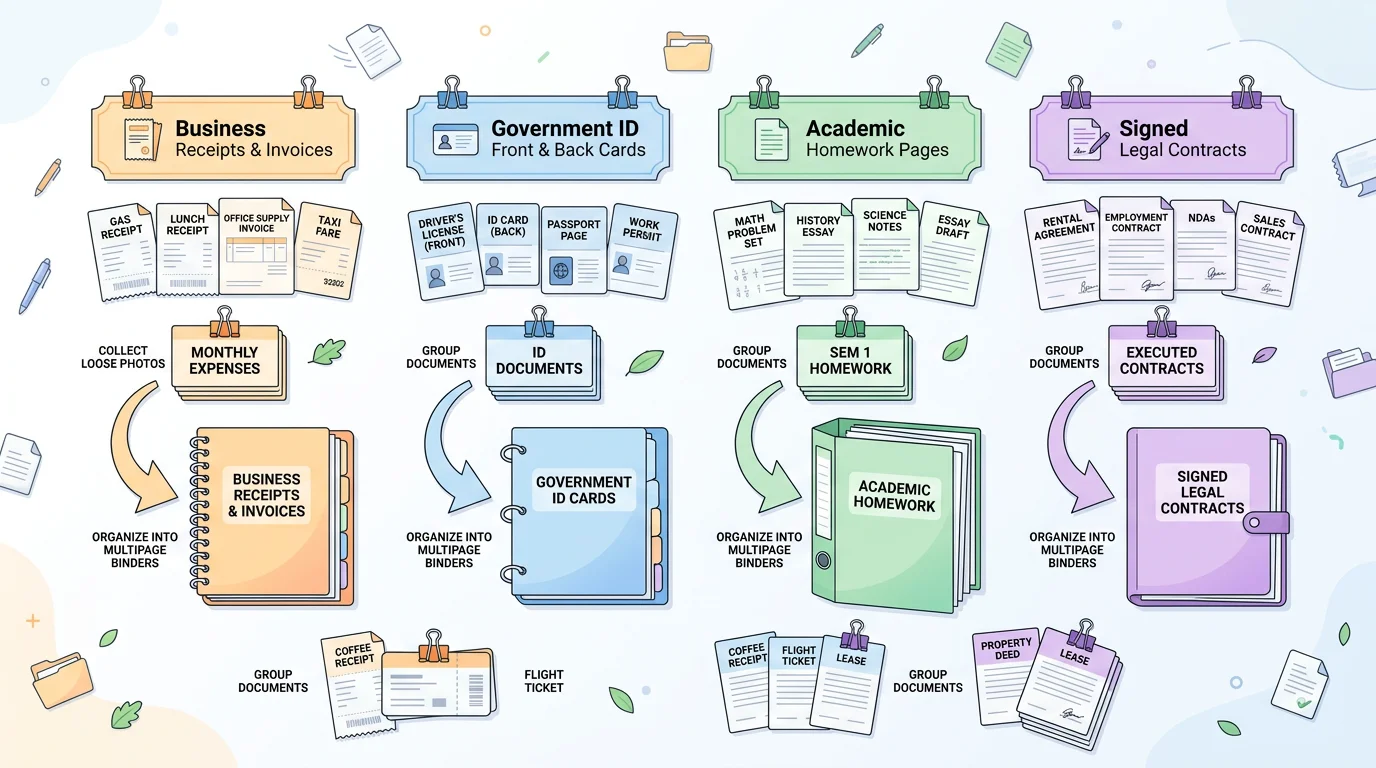
3. Top Use Cases: College Assignments, Expense Receipts & ID Cards
Combining images into a single PDF solves real-world workflow hurdles across diverse everyday scenarios:
- College & High School Assignments: Students can photograph multi-page handwritten math equations or lab diagrams and submit them as a single clean assignment on Canvas, Blackboard, or Google Classroom.
- Expense Reports & Bookkeeping: Business travelers can compile restaurant receipts, fuel bills, and flight boarding stubs into an organized expense document for accounting departments.
- ID Cards & Proof of Address: Renters and job applicants can place the front and back of driver's licenses, passports, and utility bills onto consecutive pages in a single verifiable dossier.
4. Architectural Comparison: In-Browser vs Smartphone Print vs Cloud SaaS
Users frequently turn to native smartphone "Print to PDF" tricks or third-party cloud apps. Here is an architectural breakdown of each approach:
| Feature & Privacy Metric | EditScannedPDF (In-Browser) | iOS / Android Print to PDF | Cloud PDF Converter Apps |
|---|---|---|---|
| Photo Data Privacy | 100% Local RAM (0 Cloud Egress) | Local Device Processing | Uploaded to Third-Party Servers |
| Visual Thumbnail Reordering | Interactive Drag-and-Drop | Rigid (Fixed selection order) | Supported |
| Canvas Standardization (A4 / Letter) | Auto-fit with Custom Margins | Unpredictable page clipping | Basic template options |
| Ad-Free / No Watermarks | 100% Free, Zero Watermarks | No watermarks | Forced watermarks on free tier |
| Cross-Device Support | Works on iOS, Android, Mac & PC | OS dependent workflows | Browser or dedicated app |
EditScannedPDF provides image compilation tools designed solely for legitimate document preparation, assignment submission, receipt organization, and administrative archiving. Users must possess the legal right and authorization to digitize and convert all uploaded images. For more information, please refer to our Terms of Service and Legal Disclaimer.
Related Step-by-Step PDF Guides
5. EXIF Orientation & Color Profile Standardization for High-Fidelity PDFs
When converting mobile photos and camera JPEGs to a combined PDF document, one of the most frustrating defects is unexpected page rotation. Modern smartphones (such as iPhones and Samsung Galaxy devices) record photographic orientation inside the image file's EXIF metadata header rather than rotating the physical pixel matrix. If a basic PDF compiler ignores EXIF orientation flags, portrait receipts and vertical contracts appear sideways or upside down in the final PDF.
EditScannedPDF automatically decodes EXIF orientation tags before compilation, ensuring every image sits perfectly upright. In addition, smartphone cameras capture images using broad sRGB or Display P3 color spaces. Our client-side rendering pipeline maps camera gamuts accurately into the PDF document color space, preventing muddy shadows or color shifts when documents are printed or submitted for official administrative review.
Edit Your Scanned PDF Online Free
Combine smartphone photos, receipts, and IDs into an organized, print-ready PDF booklet. 100% private in-browser processing with zero server uploads.
image Convert JPG to PDF FreeSubmitting multiple individual image files (JPG, PNG, WebP) often leads to upload rejections, mixed-up page sequences, and unwieldy email attachments. This guide explains how to convert multiple photos into a single, beautifully formatted PDF document with standard A4 or US Letter page sizing, custom margins, and flawless orientation—100% free with complete privacy inside your browser.
- Multi-Photo Collation: Combine individual camera snaps or flatbed image scans into a single organized multi-page PDF packet.
- Standard Page Sizing: Automatically conforms diverse smartphone photo dimensions into clean Letter or A4 page layouts.
- Smart Compression: Strips redundant EXIF metadata while maintaining sharp text legibility for official application portals.
- Client-Side Conversion: Image processing runs entirely in your local browser memory, keeping personal photos and documents secure.
Related Scanned PDF Guides & Tools
5. Frequently Asked Questions (FAQ)
How do I combine photos taken on my phone into a single PDF file?
Open the JPG to PDF tool on your mobile or desktop browser, select all your pictures at once, arrange them in your preferred reading order by dragging thumbnails, and click Convert to PDF. A single consolidated PDF file downloads immediately.
Will converting photos to PDF compress them or degrade image clarity?
No. EditScannedPDF embeds your photos directly into the PDF container stream using lossless or high-fidelity JPEG compression. Text, signatures, and fine details on receipts and handwritten homework remain crystal clear.
What image formats can I merge together into a PDF?
You can combine standard JPG, JPEG, PNG, and WebP images into the same merged PDF document with high fidelity, even if individual images have different aspect ratios or resolutions.
Are my private personal photos or sensitive documents uploaded to external servers?
Never. All photo processing, rotation, scaling, and PDF compilation execute locally inside your web browser via WebAssembly. Your photos and personal records never leave your device.
Does the converter add watermarks or impose file limits?
No watermarks are ever added to your documents. The tool is 100% free with no account creation, email capture, or arbitrary page limits.
How can I ensure all pages in the PDF have identical standard A4 dimensions?
In the tool settings, choose 'Fit to A4' or 'Fit to US Letter'. The engine will automatically center each image onto a standard page canvas with uniform margins, avoiding oversized or misaligned printouts.
Can I add page numbers or redact sensitive numbers on the merged PDF?
Yes. Once your PDF is created, you can open it in our Add Page Numbers tool for sequential numbering, or use the Whiteout & Paper Cleaner tool to whitewash sensitive financial or personal numbers.