Why Windows 10 & 11 Lock Scanned PDF Text
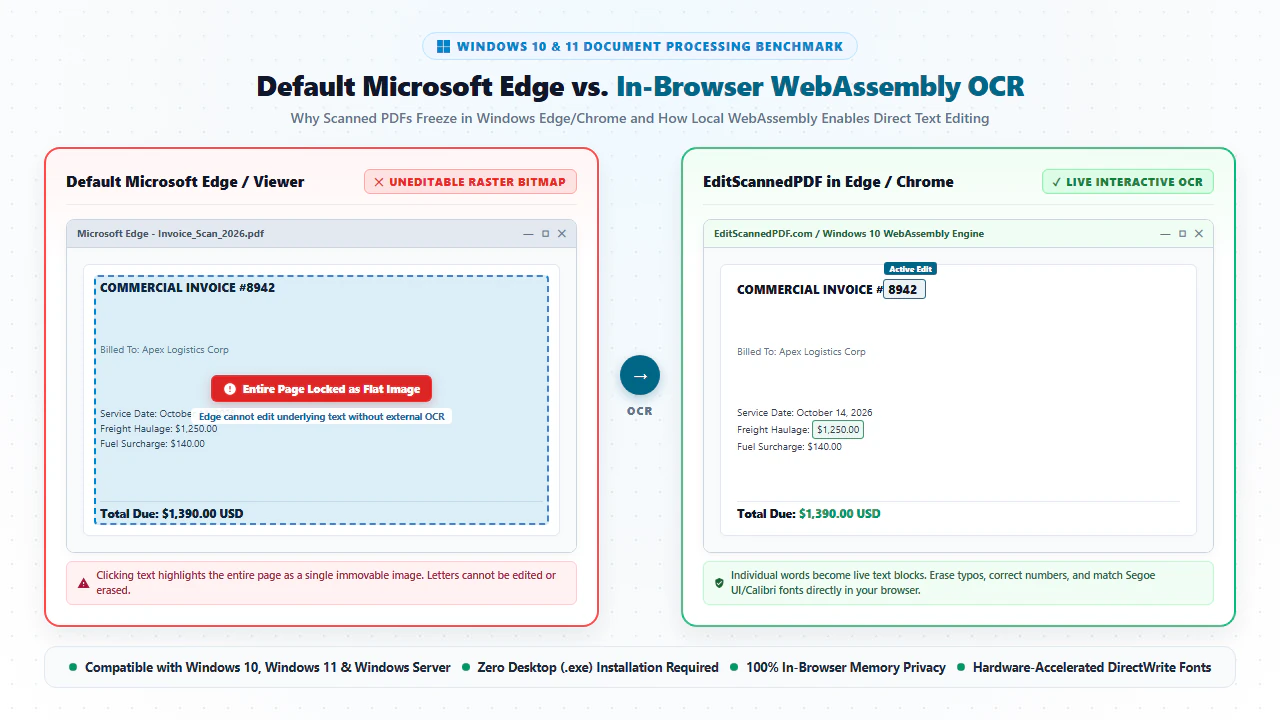
Millions of business professionals, accounting specialists, legal assistants, and home office users on Windows 10 and Windows 11 encounter the exact same frustrating hurdle daily: you receive a scanned vendor invoice, signed rental lease, or medical claim form, and you double-click it directly inside Windows File Explorer. The document opens instantly in Microsoft Edge—the default PDF viewer for modern Windows operating systems. But when you move your cursor across the page to correct an outdated billing date, fix a misspelled client name, or update a numerical figure, nothing happens. Instead of a blinking text cursor or highlighted characters, clicking anywhere selects the entire page as one giant, unresponsive image box.
This limitation stems from the fundamental architecture of scanned documents. When a paper record passes through an office flatbed scanner, automated document feeder (ADF), multi-function office printer, or smartphone scanning application, the scanner hardware does not generate selectable vector typography. Instead, it captures a high-resolution photograph composed of millions of color dots called raster pixels. When embedded into a PDF container under ISO 32000 specifications, this graphic is stored as a single static image dictionary (an /XObject subtype /Image). Because standard desktop viewers—including Microsoft Edge, basic Windows store readers, and standard browser viewers—lack a native optical character recognition (OCR) engine, they treat the document purely as a flat picture.
Historically, overcoming this roadblock on Windows required two equally undesirable compromises:
- Installing Heavyweight Commercial Desktop Suites: Corporate suites demand $240+ per seat in annual recurring software subscriptions, accompanied by 1.5 GB background installers, invasive update daemons, and administrative privilege demands that trigger enterprise IT security blocks.
- Uploading Confidential Records to Remote Cloud Converters: Free online converters invite serious regulatory liability. When you transmit proprietary financial spreadsheets, patient health intake forms, or confidential client agreements to remote multi-tenant servers, you forfeit document custody and risk violating HIPAA, GDPR, SOC 2, and corporate confidentiality policies.
Thanks to modern breakthroughs in client-side WebAssembly (Wasm) and hardware-accelerated browser rendering, Windows 10 and 11 users no longer need to pay expensive software licenses or jeopardize their data privacy. By deploying compiled machine-learning OCR algorithms directly inside Microsoft Edge, Google Chrome, or Mozilla Firefox, EditScannedPDF.com (scanned PDF editor) allows you to perform optical character recognition, erase clerical misprints, and type replacement text seamlessly in system memory with zero executable downloads and zero server uploads.
Step-by-Step Guide to Editing Scanned PDFs in Windows
Editing a scanned document on Windows 10 or 11 requires no third-party desktop utilities, no administrative software approvals, and no credit card subscriptions. Follow these four streamlined steps to perform complete, high-fidelity in-browser edits:
Open File in Windows Browser
Launch Microsoft Edge, Google Chrome, or Mozilla Firefox and open EditScannedPDF.com. Drag your scanned document straight from Windows File Explorer into the workspace to decode it instantly in local RAM.
Run In-Browser WebAssembly OCR
The client-side OCR engine parses 300 DPI raster pixels across multi-threaded CPU cores, creating an active bounding-box text layer in memory with zero cloud server exposure.
Erase Typos & Type with Windows Fonts
Select the color-matched whiteout tool to mask clerical errors or outdated figures, then overlay replacement text matching native Windows system typefaces like Segoe UI, Calibri, or Arial.
Export Flattened 300 DPI PDF
Click Export to permanently bake replacement text and whiteout layers into an ISO 32000-1 compliant PDF, downloading directly into your Windows Downloads directory.
Technical Architecture: Direct3D, WebAssembly & Platform Workflows
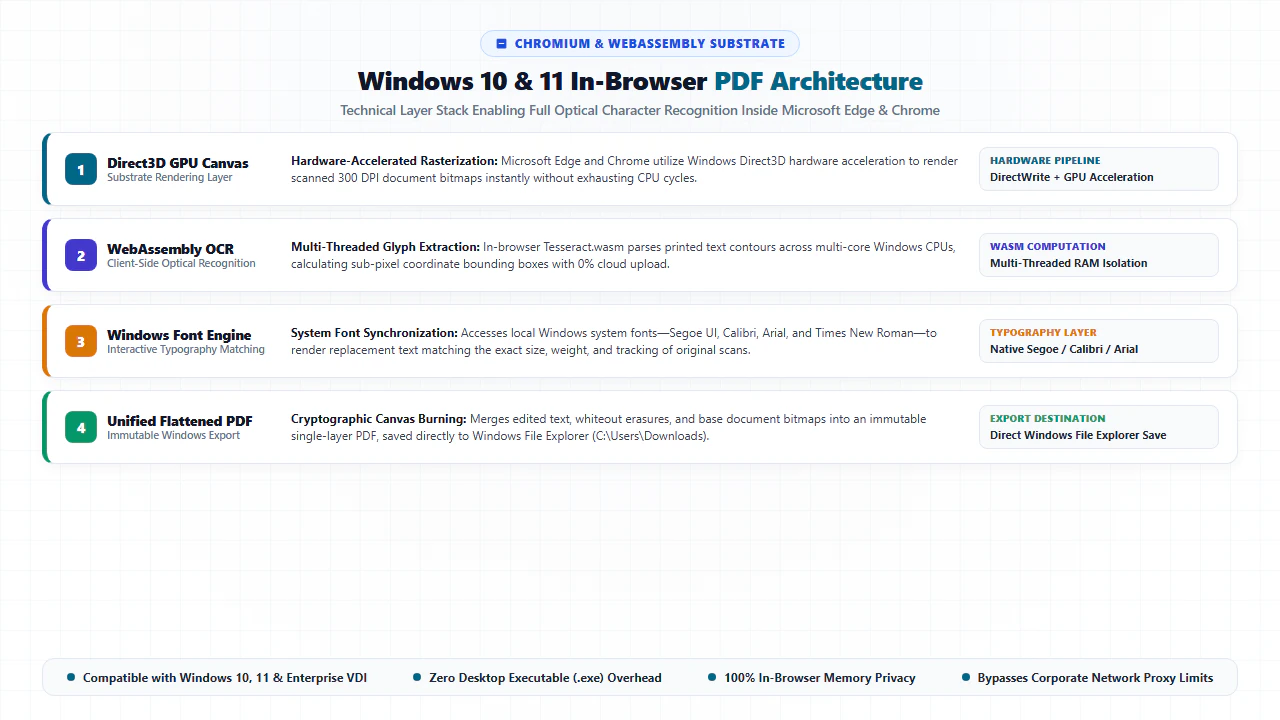
The ability to edit complex, multi-megabyte scanned records inside a web browser without crashing or lagging is driven by three tightly integrated browser engineering milestones natively supported by Windows 10 and 11:
- Direct3D GPU Hardware Acceleration: Modern Chromium browsers (Edge and Chrome) on Windows communicate directly with Microsoft's Direct3D API and your computer's graphics hardware (Intel Iris Xe, AMD Radeon, or NVIDIA GeForce). Canvas layers composite complex 300 DPI raster backdrops alongside vector typography at a silky 60 frames per second.
- WebAssembly SIMD Parallel Processing: Our optical character recognition neural models are compiled into WebAssembly binary modules utilizing Single Instruction, Multiple Data (SIMD) vector extensions. When you drop a scanned page into the tool, processing is distributed across available physical CPU cores, analyzing character boundaries in fractions of a second.
- Isolated Local Memory Sandboxing: In accordance with strict browser sandbox architectures, all PDF file buffers, temporary bitmap caches, and OCR coordinate dictionaries reside strictly within the browser tab's allocated
WebAssembly.Memorypartition. The browser writes zero unencrypted temporary files to your Windows%TEMP%folder and transmits zero document packets across the network.
- Windows File Explorer Integration: Open Microsoft Edge or Google Chrome. Open File Explorer (
Win + E), navigate to your document folder, and drag the scanned PDF directly into the editor canvas. The document opens instantaneously without file size bottlenecks. - Native Windows Font Matching: When replacing dates, names, or dollar amounts on invoices, choose corresponding Windows system fonts from the typographic toolbar. Standard corporate documents universally employ Segoe UI (Windows default interface font), Calibri (standard Office font), Arial, or Times New Roman.
- Precision Sub-Pixel Positioning: Click on your newly placed text box and use the keyboard arrow keys to nudge the text box by a single pixel. Holding
Shift + Arrow Keysnudges by 10 pixels, allowing you to align replacement numerals flawlessly with existing printed baseline grids. - Windows Snipping Tool Integration (Win + Shift + S): Need to insert an official company seal, corporate stamp, or handwritten initials? Press
Win + Shift + Sto snip the graphic from any Windows application, return to the browser tab, and pressCtrl + Vto paste the clipboard image directly onto your PDF canvas. - Instant File Explorer Download: Click "Export PDF". The browser generates a permanently flattened, 300 DPI court-ready document and prompts your browser to save it straight to
C:\Users\<Username>\Downloadsor your designated network directory.
- Touch & Stylus Gesture Navigation: On Microsoft Surface Pro, Surface Go, or touchscreen Windows laptops, use natural two-finger pinch gestures to zoom smoothly up to 400% into fine print, signature blocks, and tabular borders.
- Surface Pen Digital Signatures: Select our built-in Freehand Drawing or Digital Signature tool. Using your Surface Pen or capacitive stylus, sign contracts and initial lease clauses directly onto the screen with pressure-sensitive, anti-aliased vector stroke precision.
- Adaptive Palm Rejection: When inking with an active stylus, Windows ink APIs reject accidental palm touches, preventing stray smudges or displaced text frames while signing multi-page legal affidavits.
- Camera Capture Ingestion: Working remotely without an office flatbed scanner? Use the built-in Windows Camera app to photograph paper documents, crop borders, and open the generated image directly in the editor for instant OCR text conversion.
- Direct Cloud Drive Sync: When saving from touch devices, export your finished document directly into your local OneDrive or SharePoint folder for seamless corporate cloud synchronization.
Enterprise Windows Use Cases & Zero-Install Privacy Guarantee
Windows workstations dominate corporate finance, public administration, healthcare institutions, and legal enterprises across the globe. In these demanding operational settings, our client-side architecture addresses vital compliance, administrative, and logistical challenges:
Locked-Down Corporate IT Workstations
Enterprise IT administrators enforce stringent Group Policy Objects (GPO), Microsoft AppLocker rules, and endpoint detection agents that strictly prohibit standard employees from running unapproved .exe or .msi installers. Because EditScannedPDF runs entirely within existing web browsers without administrative privileges, staff can repair documents immediately without lodging IT helpdesk tickets.
Accounts Payable & Commercial Billing
Accounts payable teams frequently receive degraded vendor invoices, freight bills of lading, and purchase order receipts with illegible numbers or clerical mistakes. Using our browser editor, clerks can white-out mismatched remittance totals, insert verified accounting codes using clean Windows fonts, and re-export clean documents for audit trails.
Legal Discovery & Healthcare Compliance
Attorneys, paralegals, and medical billers handle sensitive files subject to HIPAA, Sarbanes-Oxley, and strict confidentiality mandates. Transmitting medical records or legal pleadings to public cloud converters violates data custody laws. Our zero-upload architecture keeps all document data strictly inside local workstation RAM, ensuring zero external exposure.
Windows PDF Editing Methods: Technical Comparison
Understanding the architectural tradeoffs between different Windows PDF editing methodologies helps you choose the safest, fastest, and most cost-effective solution for your workplace:
| Editing Approach | Installation & Admin Rights | Data Privacy & Custody | Scanned Text OCR | Annual Software Cost | System Resource Footprint |
|---|---|---|---|---|---|
| EditScannedPDF.com Browser Engine | None (Runs in Edge, Chrome, Firefox) | 100% Local Browser RAM (Zero Uploads) | Client-Side WebAssembly OCR Engine | $0 (Free Forever) | Near Zero (Frees RAM upon tab closure) |
| Default Microsoft Edge Viewer | Pre-installed on Windows 10/11 | Local Device Execution | None (Locks scans as flat image boxes) | $0 (Bundled with Windows) | Minimal (Read-only viewer) |
| Heavy Commercial Desktop Suites | Mandatory 1.5 GB .exe Installer + Admin Rights |
Local Device Execution (Periodic telemetry sync) | Proprietary Desktop OCR Suite | $240 – $360 per seat / year | High (Persistent background update daemons) |
| Standard Cloud Upload Converters | None (Browser upload queue) | High Risk (Transmits files to cloud servers) | Server-Side Remote Processing | Freemium ($60 – $120/yr paywalls) | Low locally (Heavy network bandwidth use) |
| Microsoft Word PDF Reflow Conversion | Requires Microsoft Office / 365 License | Local Device Execution | Basic Heuristic OCR Reflow | $70 – $150/year (Office Suite) | Moderate (Frequently breaks layouts and tables) |
Recommended Companion Tools for Windows Power Users
Enterprise document workflows rarely stop at a single text correction. To streamline your full document lifecycle on Windows 10 and 11, leverage these specialized in-browser companion utilities:
| Document Task | Recommended Companion Tool | Core In-Browser Capability | Primary Windows Workflow |
|---|---|---|---|
| Erase or Redact Private Data | Erase & Redact PDF | Permanent pixel redaction that eliminates underlying raster and text streams. | Redacting SSNs, tax identifiers, and banking coordinates on Windows. |
| Execute Legal Signatures | Digital Signature Tool | Draws vector signatures or pastes signature stamps with ESIGN and UETA validity. | Signing vendor contracts, NDAs, and rental leases on Surface or PC. |
| Convert Scans to Word Format | Scanned PDF to Word | Transforms non-selectable scanned pages into fully editable .docx files. |
Extracting tables and paragraphs into Microsoft Word for rewriting. |
| Compress Large File Attachments | Compress PDF Free | Applies smart Flate stream compression to reduce 50MB scanner files below 2MB. | Overcoming Outlook, Gmail, and government upload file size limits. |
| Combine Multi-Page Batches | Merge PDF Online | Merges separate scanner batches, photo exhibits, and cover pages into one file. | Organizing loan dossiers, court filings, and accounting audits. |
| Fix Inverted or Sideways Pages | Rotate PDF Tool | Instantly orients skewed or upside-down scanner pages by 90, 180, or 270 degrees. | Correcting orientation errors before performing OCR analysis. |
Deep Architecture, Pro Engineering Tips & Statutory Compliance
When modifying business records on Windows workstations, technical precision and legal awareness must go hand in hand. Under ISO 32000-1 specifications, a PDF is an organized object tree containing content streams, graphics state parameters, and font resource dictionaries. When EditScannedPDF processes a document, it preserves the native 300 DPI background raster image while overlaying an exact typographic layer mapped with sub-pixel coordinates. When you export, the engine performs permanent raster flattening, baking whiteout rectangles and replacement glyphs into the document stream so that third-party viewers cannot peel back edits or reveal previous data.
Supercharge your document editing speed in Microsoft Edge or Chrome by integrating standard Windows hotkeys:
- Windows Snipping Tool (
Win + Shift + S): Capture any corporate logo, signature stamp, or table directly to clipboard, then pressCtrl + Vin the editor to paste it onto the page instantly. - Sub-Pixel Nudge Alignment (
Arrow Keys/Shift + Arrow Keys): Fine-tune replacement numbers to sit precisely on printed dotted lines and ledger grids. - Instant Undo / Redo (
Ctrl + Z/Ctrl + Y): Immediately revert accidental repositioning or typographical mistakes. - Pin as a Standalone App (PWA): In Microsoft Edge, click the three dots menu (
...) > Apps > Install this site as an app. This pins EditScannedPDF directly to your Windows Taskbar and Start Menu as a dedicated, lightweight desktop window.
EditScannedPDF is engineered strictly for lawful administrative document corrections, filling authorized business blanks, repairing clerical typographical errors, updating your own commercial invoices, and executing legitimate contracts. Never alter, falsify, or forge official government credentials, passports, driver's licenses, court orders, academic transcripts, or financial banking statements. Modifying sovereign records or misrepresenting identity constitutes criminal forgery and fraud under federal and state statutes (including 18 U.S.C. § 1001 and 18 U.S.C. § 1028), punishable by substantial financial penalties and federal imprisonment. Only edit documents that you legally own or are authorized in writing to modify.
-
check_circle
Zero Software Installation: Runs directly inside Microsoft Edge, Chrome, or Firefox on Windows 10 and 11 without administrative approval or
.exeinstallers. - check_circle 100% In-Browser Privacy: Client-side WebAssembly processes all OCR and text modifications in local RAM; no files are ever sent to cloud servers.
- check_circle Native Windows Typography: Seamlessly match original fonts using standard Windows system typefaces including Segoe UI, Calibri, and Arial.
- check_circle Permanent Raster Flattening: Edits and whiteout corrections are irreversibly baked into the PDF stream, ensuring full legal audit integrity.
To edit scanned PDF files on Windows 10 and 11 without purchasing expensive desktop software or transmitting files to cloud servers, drag your document into EditScannedPDF.com in Microsoft Edge or Google Chrome. Our compiled WebAssembly OCR engine detects printed characters directly inside your PC's browser RAM. Use the precision whiteout tool to mask typos, overlay replacement text matching Windows system fonts, and export a permanently flattened 300 DPI PDF directly to your Downloads folder—100% free, private, and secure.
Ready to Edit Your Scanned PDF on Windows?
Perform instant in-browser OCR, correct text and numbers, and save flattened PDFs directly to your Windows computer. 100% private, free, and software-free.
desktop_windows Edit Windows Scanned PDF FreeFrequently Asked Questions for Windows Users
Why can't I edit scanned text directly inside Microsoft Edge on Windows 10 or 11?
Microsoft Edge includes a lightweight PDF viewer designed for reading, digital pen markup, and basic AcroForm filling. When a physical document is scanned or photographed, it is encoded as a static grid of raster pixels rather than digital vector text. Because Edge does not include a built-in optical character recognition (OCR) engine, clicking on the document selects the entire page as a flat image rectangle. EditScannedPDF provides the missing WebAssembly OCR engine directly inside Edge, enabling live text editing.
Do I need Windows Administrator privileges or an .exe installer to edit scanned PDFs?
No. EditScannedPDF executes entirely inside modern web browsers (Microsoft Edge, Google Chrome, Mozilla Firefox, or Brave) using compiled WebAssembly and JavaScript. It requires zero executable (.exe or .msi) desktop installers, zero administrative domain credentials, and zero background services, making it ideal for restricted corporate and government Windows workstations.
Can I use native Windows system fonts like Segoe UI, Calibri, and Arial when editing text?
Yes. When typing replacement copy, dates, or numerical figures, you can select from standard Windows system typefaces including Segoe UI, Calibri, Arial, Times New Roman, and Consolas. This ensures your added text harmonizes naturally with the original scanned typography.
Is it safe to edit confidential corporate documents on enterprise Windows PCs without cloud exposure?
Yes, 100% safe. Traditional cloud conversion websites upload your private files to remote third-party servers. In contrast, EditScannedPDF operates under a strict client-side model: WebAssembly modules process OCR, text replacement, and PDF rendering entirely within your PC's local browser RAM. No document data or metadata is ever transmitted over the network, ensuring strict compliance with HIPAA, GDPR, and corporate data governance policies.
Can I paste signatures or images directly from the Windows Snipping Tool (Win + Shift + S)?
Yes. Our editor supports standard Windows clipboard integration. After capturing an image, seal, or handwritten signature using the Windows Snipping Tool (Win + Shift + S) or copying an image in File Explorer, simply press Ctrl + V on the document canvas to paste, scale, and position it directly onto your scanned PDF.
Does in-browser OCR work offline on a Windows laptop without an active internet connection?
Yes. Once the web application is loaded and cached in your browser tab, all OCR models and PDF rendering libraries reside in local memory. You can disconnect from Wi-Fi or work in an air-gapped corporate environment, edit your scanned documents, and export flattened PDFs completely offline.
What should I do if a scanned document opens sideways or inverted in Windows File Explorer?
If a multi-page scanner feeder inserted pages sideways or upside down, use our dedicated Rotate PDF tool before editing. You can rotate individual pages or the entire document by 90, 180, or 270 degrees in local memory, re-orienting text upright so the OCR engine achieves maximum character recognition accuracy.