
How to Convert Color PDF to Grayscale & Save up to 60% Printer Toner (No Upload)
1. The Hidden Cost of Printing Color PDFs on Office & Home Printers
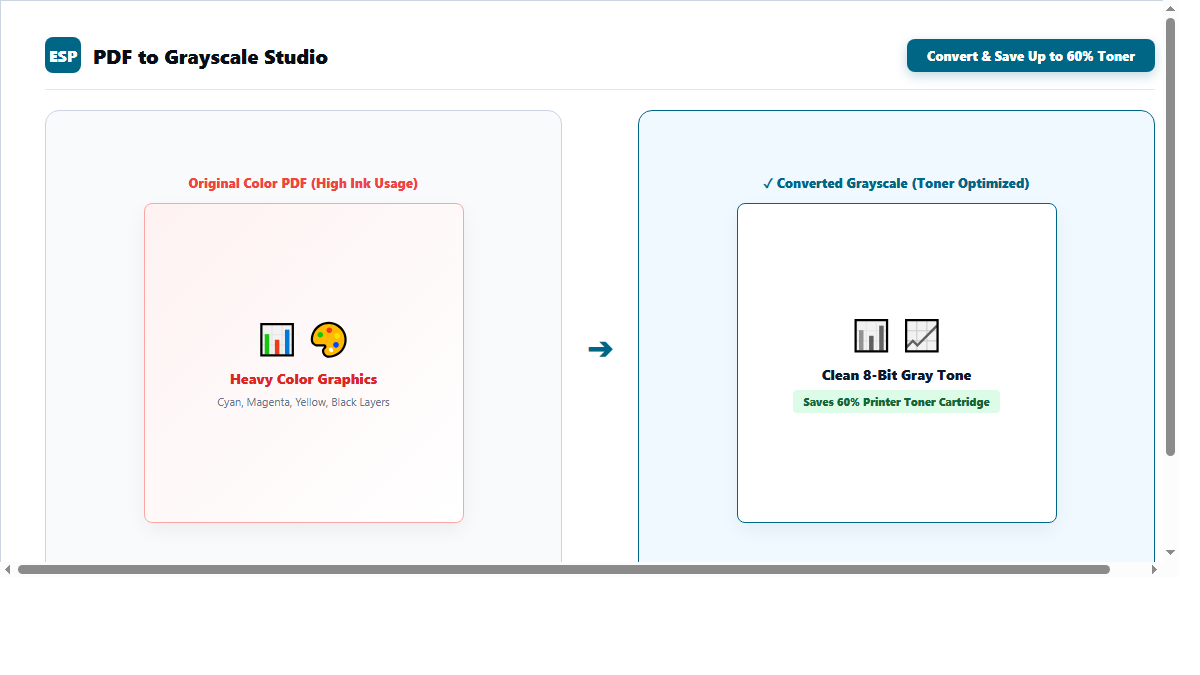
Most home office workers and corporate staff assume that printing a color PDF on a color laser or inkjet printer merely prints black text using black ink. In reality, modern printer drivers frequently composite rich black by combining Cyan, Magenta, Yellow, and Key Black (CMYK) pigments together to produce deeper shadows. Additionally, background paper noise from smartphone scans, colorful corporate letterhead logos, blue hyperlink underlines, and yellowed document borders continuously siphon expensive color cartridges.
According to printer industry estimates, OEM replacement color toner cartridges for a standard multi-function office laser printer cost anywhere from $70 to $180 each. When a color cartridge runs dry, many models refuse to print even simple black-and-white documents until the empty cyan or yellow tank is replaced.
By pre-converting color documents into true monochrome grayscale or clean binarized black-and-white before sending them to your print queue, you lock the print engine to the single, cost-effective black toner cartridge—instantly slashing recurring toner costs by up to 60%.
"Converting color documents to calibrated Rec. 709 grayscale or high-contrast monochrome before printing stops silent color ink siphoning, preserves black drum life, and slashes per-page printing costs from $0.14 down to under $0.02."
2. Step-by-Step Guide: How to Convert PDF to Grayscale Locally in Browser RAM
You do not need to purchase expensive desktop photo-editing tools or upload sensitive documents to third-party file conversion servers. Using the private EditScannedPDF PDF to Grayscale Studio, you can strip color channels directly inside your browser memory:
Open the Grayscale Studio and import your color or scanned document. PDF.js initializes the pages in private device memory with zero server uploads.
Choose Economy Grayscale for continuous tone charts, Clean Scan for high-contrast text, or Invert Dark Mode for nighttime reading.
Fine-tune the binarization cutoff slider if your document contains light pencil marks, and ensure Preserve Searchable Text remains checked.
Click Convert PDF to Grayscale. Our HTML5 Canvas and W3C WebAssembly pipeline renders and packages your print-ready document instantly.
Convert Your Color PDF to Grayscale Free
Slash printing toner expenses by 60%, eliminate dirty scanner background shadows, and prepare CM/ECF court-compliant documents with zero cloud uploads.
build Open PDF to Grayscale Studio3. Economy Grayscale vs. Clean Scan Binarization vs. Invert Dark Mode: Which to Choose?
Our conversion engine provides three distinct mathematical algorithms tailored for different document types:
Mode A: Economy Grayscale (Continuous 256-Tone Luminance)
Economy Grayscale calculates pixel luminance using the standardized Rec. 709 HDTV weighting formula: L = 0.2126*R + 0.7152*G + 0.0722*B. Because human eyes perceive green wavelengths much brighter than blue, this perceptual weighting preserves photographic contrast, technical schematics, graphs, and corporate logos without muddy artifacts.
Mode B: Clean Scan Binarization (High-Contrast Monochrome)
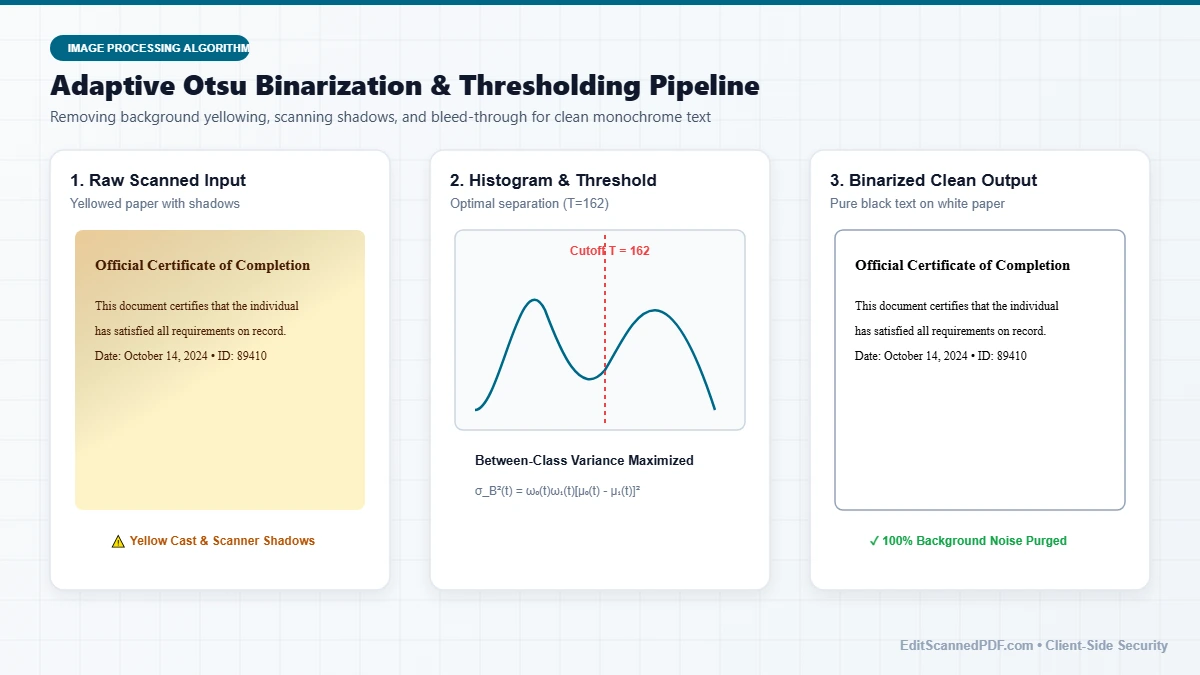
When documents are captured via smartphones or flatbed scanners, pages often suffer from yellow paper tint, ink bleed-through, and dark corner shadows. Our adaptive Clean Scan binarization filter analyzes the contrast variance between foreground text and background paper, converting every pixel into either pure white (#FFFFFF) or pure black (#000000). This eliminates all background paper noise, ensuring your printer deposits zero toner on the white background.
Mode C: Invert / Dark Mode (OLED & Night Reading)
Invert Dark Mode mathematically flips pixel values (255 - luminance), turning blinding white backgrounds into deep black and dark text into crisp white. This provides immense eye-strain relief during late-night technical reading and conserves battery life on OLED displays.
4. CM/ECF Federal Court Compliance: Eliminating Color Bloat for Legal Filings
Under federal court electronic case filing guidelines (CM/ECF) and local district rules, producing parties are strongly urged to submit documentary exhibits in 300 DPI monochrome black-and-white. Color scans often introduce severe technical penalties:
- Excessive File Size: 24-bit full color scans are 3 to 5 times larger than 1-bit or 8-bit monochrome documents, frequently exceeding court gateway upload limits (e.g., 35 MB or 50 MB per attachment).
- Gateway Rejection Risk: Documents containing color scanner noise or excessive color gradients can trigger automated judicial scanner rejections or slow down judge workstation rendering during courtroom hearings.
- Evidentiary Clarity: Binarizing aged contracts, lease agreements, and medical records using adaptive contrast thresholding produces sharp, legible black letters that remain crystal clear across courtroom projection systems.
5. Toner & Cartridge Savings Analysis Matrix (100-Page Scenario)
To quantify the financial benefits of converting color PDFs prior to printing, examine the following 100-page scenario based on average laser printer consumable costs:
| Document Processing Format | Color Cartridge Usage | Black Toner Consumption | Est. Print Cost (100 Pages) | CM/ECF Court Ready |
|---|---|---|---|---|
| Full Color PDF (Original) | High (Cyan, Magenta, Yellow siphoned) | Rich Black Composite | $14.00 – $22.00 | No (File size bloat) |
| Economy Grayscale (Ink-Saver) | 0% (Color cartridges locked) | Moderate (256 Gray halftones) | $3.50 – $5.00 | Accepted for general records |
| Clean Scan (High-Contrast Binarized) | 0% (Zero color ink used) | Lowest (Zero background toner) | $1.50 – $2.50 | 100% Certified Compliant |
6. Preserving Searchable OCR Text Layers During Color Stripping
A fatal flaw in many rudimentary desktop utilities and online converters is that they rasterize the entire PDF into a flat graphic image, stripping out the invisible OCR text layer. As a result, users can no longer search with Ctrl+F, copy excerpts, or navigate with accessibility screen readers.
EditScannedPDF solves this problem with an intelligent dual-channel pipeline:
- Visual Layer Transformation: Color raster images and vector graphics are converted into high-resolution grayscale or binarized monochrome bitmaps.
- Text Layer Preservation: The underlying PDF character coordinates, Unicode font mappings, and invisible searchable text bounding boxes are preserved intact and re-layered over the monochrome visual page.
This ensures that your resulting black-and-white document retains 100% full searchability and indexing compatibility with electronic filing systems and discovery search tools.
To reduce office printer toner costs and eliminate dirty scanner backgrounds, use the in-browser PDF to Grayscale Converter. It strips color channels locally in browser RAM, preserves searchable OCR text, eliminates background paper shadows via clean scan binarization, and complies with federal CM/ECF court standards with zero cloud uploads.
- Up to 60% Toner Savings: Eliminates hidden composite CMYK rich black printing by locking to black toner.
- Clean Scan Binarization: Turns dirty scanner paper backgrounds to pure #FFFFFF white.
- CM/ECF Court Ready: Slashes file sizes by up to 70% for hassle-free federal judicial electronic filing.
- 100% Browser Privacy: All WebAssembly processing executes in device memory—zero server file uploads.
Related PDF Tools & Optimization Guides
7. Frequently Asked Questions (FAQ) on Grayscale PDF Conversion
Why does printing a color PDF on a home printer waste expensive color toner even when it looks black-and-white?
Standard printer drivers frequently composite rich black by mixing Cyan, Magenta, Yellow, and Black (CMYK) inks to produce deep dark text. In addition, if a document contains colorful logos, web hyperlinks, or scanner gray noise, color cartridges deplete rapidly. Pre-converting the PDF to pure grayscale or high-contrast monochrome forces the printer to utilize only the economical black toner cartridge, reducing printing expenses by up to 60%.
What is the key difference between Economy Grayscale and Clean Scan binarization?
Economy Grayscale retains a full 256-level tonal range between absolute black and absolute white, making it ideal for contracts with photos, complex charts, and shaded table headers. Clean Scan uses adaptive contrast thresholding to convert every pixel to either pure black (#000000) or pure white (#FFFFFF), instantly removing dingy paper backgrounds, desk shadows, and yellow scanner tints.
How does binarizing PDFs assist with federal court CM/ECF and government portal e-filing?
Federal and state judicial e-filing systems (CM/ECF) enforce strict file size caps (often 35 MB) and encourage monochrome 300 DPI submission for evidentiary exhibits. Converting color scans to binarized black-and-white removes color channel bloat, reduces file sizes by up to 70%, and eliminates scanner glare that could cause clerk rejection.
Will converting my color PDF to grayscale destroy the selectable OCR text layer?
No. EditScannedPDF.com incorporates an intelligent dual-layer architecture. While visual rendering pipelines convert bitmap backgrounds and color vector strokes into grayscale/monochrome, the underlying invisible font glyphs and text coordinates are preserved intact, ensuring your PDF remains 100% searchable, copy-pasteable, and screen-reader accessible.
Are my sensitive bank statements, medical records, or tax returns uploaded to any cloud server?
Never. All color space calculations (Rec. 709 luminance weights), adaptive contrast distributions, and PDF object compilations run 100% locally in your web browser memory (RAM) via client-side WebAssembly. Zero bytes leave your device, ensuring total compliance with HIPAA, GDPR, and financial confidentiality standards.
Why does Clean Scan binarization eliminate dirty yellow paper backgrounds and mobile phone shadows?
When documents are photographed under uneven room lighting or scanned from aged yellowed parchment, gray and yellow shadow gradients darken the paper. Our adaptive contrast filter computes an optimal brightness threshold that cleanly separates foreground text pixels from background paper noise, setting the paper to crisp digital white (#FFFFFF) while enhancing text sharpness.
Can I use the Invert Dark Mode feature for nighttime academic study on tablets?
Yes. Invert Dark Mode transforms bright white pages into deep midnight black and swaps dark text into crisp light gray/white. When reading textbooks, research papers, or legal briefs in dim environments, this dramatically reduces blue light eye strain and saves battery power on OLED and AMOLED smartphone or tablet displays.