
How to Convert Scanned PDF Forms into Editable PDF Online
The Dilemma of Static Scanned Forms & Architectural Principles
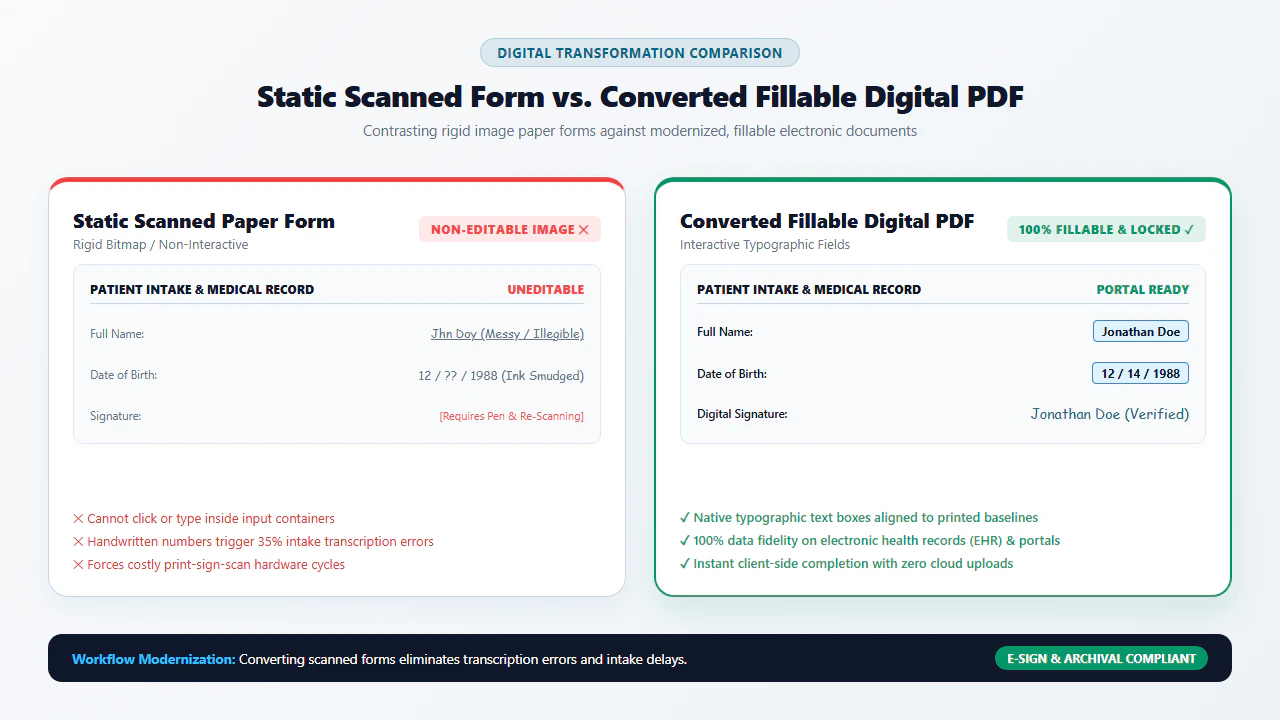
Government agencies, healthcare systems, insurance carriers, school districts, and corporate legal departments routinely distribute forms as static scanned PDF files. Whether dealing with patient medical history questionnaires, commercial lease applications, employment tax forms, or municipal permit requests, recipients are greeted by the same frustrating obstacle: a flat photograph of a paper form that cannot be clicked, tabbed through, or filled out digitally. With our edit scanned PDF, everything runs locally in your browser with zero file uploads.
For decades, the standard response was the inefficient print-and-scan cycle: printing physical sheets, filling them out by hand with a ballpoint pen, scanning the crumpled papers back into a computer, and emailing the grainy result. Beyond wasting valuable hours and paper, handwritten forms suffer from poor legibility, transcription errors, and automatic rejection by robotic process automation (RPA) intake pipelines. Converting the scan to a Word document often destroys delicate table boundaries, offsets signature lines, and causes text to reflow unpredictably. For deeper troubleshooting, see our guide on why you cannot edit text in a scanned PDF.
With modern browser-based WebAssembly form synthesis, you can now convert any static scanned PDF form into an interactive, fillable digital document directly in your browser. Discover how raster coordinate mapping, AcroForm widget overlays, auto-fitting typography, and permanent canvas flattening modernize legacy paper forms with 100% data privacy:
1. Static Raster Scans vs. Dynamic Vector AcroForm Dictionaries
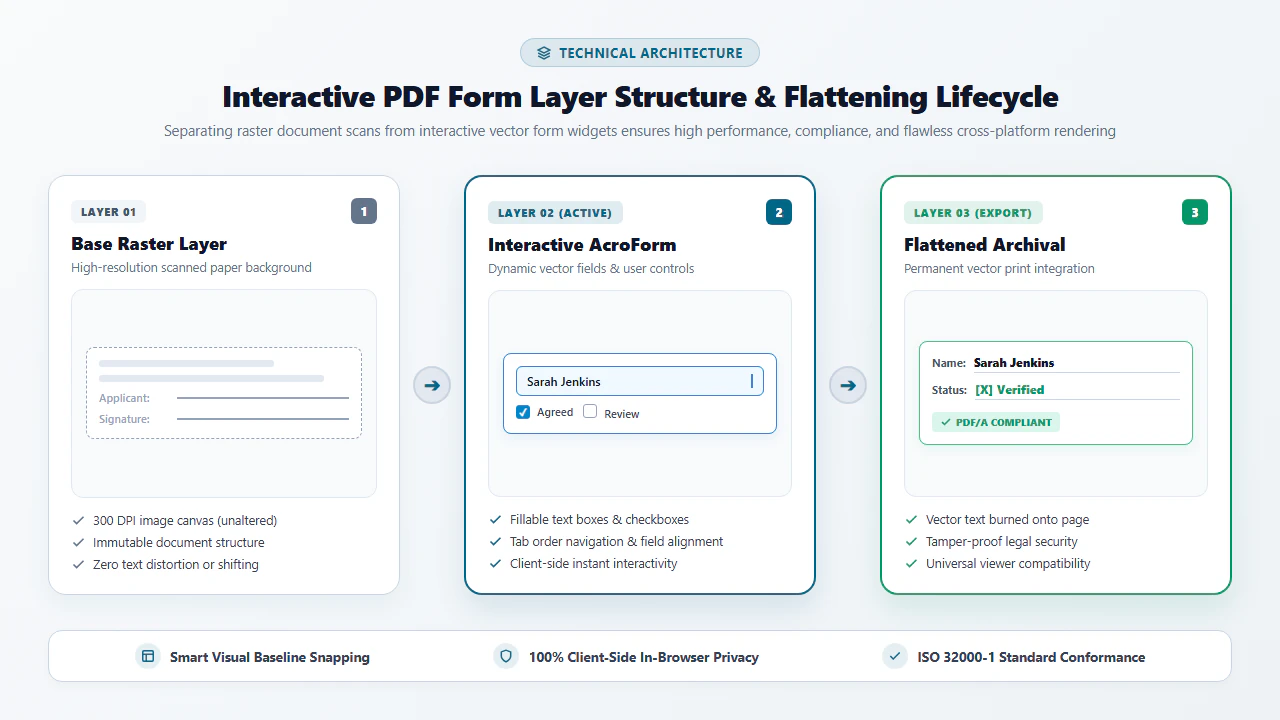
Scanned forms are merely two-dimensional grids of colored pixels. To make them editable, an application must construct an interactive vector layer containing standardized PDF form fields (known as AcroForm widgets under ISO 32000). These widgets sit precisely above the raster background, allowing users to type text, toggle checkboxes, and embed digital signatures without altering underlying layout boundaries.
2. Bounding Box Detection for Underlines, Boxes & Checkbox Grids
Paper forms rely on standard geometric conventions: blank underlines for personal names, boxed character combs for social security numbers, and square outlines for boolean checkboxes. Machine vision algorithms detect these geometric boundaries and map interactive field inputs directly to their pixel coordinates.
3. Font Metric Calibration & Auto-Fitting Typography
A frequent defect in amateur digital form filling is text clipping or misaligned baselines where typed responses float awkward millimeters above printed lines. Client-side form synthesis aligns font baselines to printed rules and enables dynamic auto-sizing, automatically scaling down character point sizes as users type longer responses.
4. Client-Side WASM Execution vs. Vulnerable Cloud Form Portals
Confidential intake forms frequently contain highly sensitive personally identifiable information (PII), medical diagnoses, and financial account numbers. Modern client-side WebAssembly processes every byte in local browser memory, eliminating the regulatory compliance violations and data breach vulnerabilities associated with uploading forms to third-party cloud servers.
4 Steps to Convert Scanned PDF Forms into Editable PDFs (Step-by-Step)
Converting non-interactive scanned forms into professional, fillable PDFs on EditScannedPDF.com requires no costly desktop software installations or complex account registrations. Follow this 4-step workflow to generate interactive forms directly in your web browser:
Ingest Scanned Form Locally
Open the free Edit Scanned PDF Online tool or form converter. Drag your document directly into the browser viewport. The document is decoded in local browser RAM via WebAssembly without sending a single byte across the internet.
Overlay Interactive Form Fields
Click on form field zones to place interactive text boxes, checkboxes, radio buttons, and date fields over original scanned underlines and table cells.
Configure Typography & Alignment
Set font size to auto-fit, select matching font families, align text flush with horizontal form rules, and establish logical keyboard Tab navigation order.
Export Fillable or Flattened PDF
Export your completed form as an interactive AcroForm for distribution or as a permanently flattened, tamper-evident PDF ready for official submission.
Interactive Form Architecture & Platform Workflows
Under the ISO 32000 PDF standard, interactive forms are represented as specialized widget annotation dictionaries linked to a document-level /AcroForm catalog. Converting a scanned bitmap form into a fully interactive digital document requires a sophisticated tripartite architecture:
- Raster Substrate Layer: The original scanned image preserved as an uncompressed 300 DPI background layer, guaranteeing zero loss of legal disclaimers, logos, or jurisdictional watermarks.
- Vector Widget Layer: High-performance HTML5 and SVG input fields positioned over blank response zones, including single-line text inputs (
/Tx), checkbox groups (/Btn), and signature fields (/Sig). - Tab Order & Validation Engine: An in-memory navigational graph that routes keyboard focus logically across fields and validates required entries (such as email formatting or numeric date constraints).
- High-Resolution Canvas Loading: Open Chrome, Edge, Firefox, or Safari on your desktop and drag your scanned PDF form into the workspace. The WebAssembly engine decodes the document at 300 DPI, displaying fine gridlines and printed text with razor-sharp clarity.
- Click-to-Place Interactive Form Fields: Click the Add Text or Add Field tool. Click once above any blank line, box, or table cell to instantiate a form field. Use mouse handles or arrow keys to snap the field boundaries cleanly against printed underlines.
- Configure Font Sizing & Keyboard Tab Order: Set font style to match original printed typography (Helvetica, Times, Courier). Enable auto-fitting font sizes so long names or addresses scale down dynamically without clipping. Organize fields in sequence so users can tab smoothly through the document using the
Tabkey. - Export Interactive AcroForm or Flattened PDF: Click Download. Choose between an interactive fillable PDF (distributable to clients for digital completion) or a permanently flattened PDF (locking in all responses for formal legal or government submission).
- Mobile Document Ingestion & Camera Scan Import: Launch Safari on iOS or Chrome on Android and tap Select Document. Import your scanned form PDF or camera photo directly from the Files app, iCloud Drive, Google Drive, or photo gallery.
- Touch-Friendly Field Placement & Pinch-Zoom: Use intuitive two-finger pinch-to-zoom gestures to zoom into small signature blocks or checkbox grids. Tap anywhere on the page to spawn a responsive text field or checkbox with touch-optimized handles.
- Native Mobile Virtual Keyboard & Digital Signatures: Tap into any created form field to summon the native mobile keyboard. Tap the signature tool to draw an authentic ink signature directly on your touchscreen with your finger or stylus.
- In-Memory Mobile Download: Tap Download PDF. The WebAssembly engine packages the completed form in device RAM with zero cellular data transit, saving directly into your smartphone's "Files" or "Downloads" folder ready for instant email forwarding.
Enterprise Use Cases & Privacy Guarantee
Modernizing static paper forms into digital, interactive workflows delivers massive efficiency dividends across complex enterprise, legal, and medical environments:
Scenario 1: Healthcare Patient Intake & Clinical Questionnaires
Medical clinics, dental offices, and physical therapy practices routinely distribute multi-page paper registration clipboards containing patient medical histories, insurance details, and HIPAA consent forms. Converting these legacy forms into fillable digital PDFs allows patients to complete their paperwork in advance on their smartphones or home computers, eliminating waiting room queues and avoiding manual EHR data entry errors.
Scenario 2: Legal Client Onboarding, Retainers & Court Petitions
Law firms handling personal injury, family law, and corporate litigation frequently work with standardized government and court forms distributed only as scanned image files. Paralegals convert these documents into interactive templates, populating client details, matter numbers, and electronic signature blocks without altering mandated judicial formatting.
Scenario 3: Human Resources Onboarding & Tax Certifications
Corporate HR departments onboarding new employees must collect W-4 tax withholdings, I-9 verification forms, and direct deposit authorizations. Deploying interactive client-side PDF forms allows new hires to complete and sign onboarding documentation securely from any operating system without software installations.
100% Client-Side Privacy Guarantee: Zero Cloud Uploads
Your confidential medical histories, signed retainer agreements, and employee tax declarations are never transmitted across the internet. EditScannedPDF.com executes all rendering, form field synthesis, and PDF compilation algorithms entirely within your web browser's sandboxed WebAssembly execution environment. Files remain in local device memory, guaranteeing complete regulatory compliance with HIPAA, GDPR, GLBA, and attorney-client work-product confidentiality rules.
Interactive Form Technologies Comparison Matrix
Evaluate the operational differences, formatting integrity, and security guarantees between modern browser-based form synthesis, costly commercial desktop suites, cloud conversion portals, and manual print-and-scan workflows:
Quick Fix & Recommended Companion Tools
Choose the specialized browser tool below based on your document completion task and workflow requirement:
Deep Architecture, Pro Engineering Tip & Legal Standards
Modernizing scanned paper forms into digital workflows must satisfy strict architectural requirements under the ISO 32000 PDF standard and federal legal electronic records mandates. In professional document workflows, document modifications must balance technical perfection with legal admissibility:
- AcroForm Dictionary Compliance: Interactive form fields must be linked to the root PDF document catalog via a well-formed
/AcroFormdictionary, complete with Default Appearance (/DA) strings, resource font dictionaries (/DR), and value entries (/V). - Tab Order Array Structure: Each page dictionary must declare a structural
/Tabs /Sentry, guaranteeing that users pressing the Tab key navigate through fields in logical reading order rather than creation order. - Dynamic Font Auto-Fitting: Setting font size to
0in the field's appearance string allows conforming PDF renderers to dynamically decrease character point size to fit long input values within the bounding rectangle.
verified Pro Engineering Tip: Tab Order Sequence & Auto-Fitting Font Sizing
When converting multi-page scanned forms, configure field font sizes to 'Auto' (0 in PDF /DA operator) so long names or addresses scale down cleanly without truncating. Always verify the tab order index array (/Tabs /S) so users navigating via keyboard Tab key flow naturally from left to right, top to bottom.
gavel Statutory Legal Compliance & Evidentiary Standard Notice: Electronic Form Completion & Signature Legality
Electronic Signature Legal Validity: Under the federal Electronic Signatures in Global and National Commerce Act (ESIGN Act, 15 U.S.C. § 7001), the Uniform Electronic Transactions Act (UETA), and FDA 21 CFR Part 11, electronic signatures, checkmarks, and form responses placed on digitally converted PDF forms carry the exact legal weight and admissibility of physical ink signatures on paper.
Severe Criminal Penalties for Fraudulent Falsification: Digitally altering official government questions, modifying statutory liability language, falsifying tax representations, or forging signatures under the guise of 'form conversion' constitutes serious criminal conduct under 18 U.S.C. § 1001 (Fraud and False Statements) and 18 U.S.C. § 1519, subjecting violators to severe civil fines and imprisonment. You may only complete forms that you are authorized to administer or execute.
checklist Key Takeaways for Converting Scanned Forms
- Preserve 100% Visual Fidelity: Retain the original scanned raster background while overlaying standardized interactive vector fields.
- Universal Cross-Device Fillability: Enable click-to-type text fields, single-tap checkboxes, and mobile touchscreen digital signatures.
- Flexible Archival Output: Export as an interactive fillable AcroForm for distribution or flatten values permanently for official submission.
- 100% Client-Side Privacy: Execute the entire form conversion pipeline inside browser WebAssembly RAM with zero server transmission.
AI Overview Capsule: Converting Scanned Forms
To convert a scanned PDF form into an editable document, load your file into our browser-based form editor. Place interactive text fields, checkboxes, and signature widgets over printed lines and boxes, adjust typography and tab order, and export. Choose between an interactive fillable PDF for distribution or a flattened PDF for anti-tamper submission with 100% client-side privacy.
Convert Scanned Forms into Interactive Fillable PDFs
Add text inputs, checkboxes, and signatures to any scanned paper form in seconds with 100% client-side privacy.
edit_document Start Converting Scanned Forms NowFrequently Asked Questions
Can I convert a scanned form to Word or keep it as a PDF?
While you can convert scanned forms into Word documents, doing so frequently breaks intricate grid structures, dislocates signature lines, and causes text reflow issues. Keeping the document as an interactive PDF with overlaid AcroForm fields preserves 100% of the original raster visual layout while providing native, cross-platform digital fillability.
How do I add interactive fillable text fields to a scanned form?
Open your scanned document in our browser-based editor, select the Form Field or Type tool, and click directly above the form's blank underline or rectangular box. The engine generates an interactive text widget calibrated to the line's dimensions with customizable font size, alignment, and tab indexing.
Will checkboxes and radio buttons work on mobile devices?
Yes. Interactive form widgets created on EditScannedPDF.com follow strict ISO 32000 PDF standards. Checkbox and radio button fields respond instantly to single-finger touch taps across iOS Safari, iPadOS, Android Chrome, and all standard mobile PDF viewers.
Can I add a legally binding digital signature to a converted scanned form?
Yes. Our editor allows you to draw, type, or upload an authentic digital signature directly into dedicated signature fields. Under the federal ESIGN Act and UETA regulations, electronic signatures placed on converted PDF forms carry the full legal validity of physical ink signatures.
What is the difference between an editable form and a flattened PDF?
An editable form contains active AcroForm field widgets that users can click into, edit, and modify. A flattened PDF permanently bakes all entered text, checkmarks, and signatures into the underlying raster bitmap layer, preventing subsequent tampering and ensuring courtroom and municipal e-filing compliance.
Are my completed medical or tax forms uploaded to external cloud servers?
No. EditScannedPDF.com operates entirely within your web browser using WebAssembly. All document processing, form field rendering, text entry, and PDF flattening occur strictly inside local device RAM. Your private health records, tax forms, and financial statements never travel across the internet.
Can I save my form progress and return to complete it later?
Yes. When exporting your document as an interactive fillable PDF, all entered form responses are stored in standard PDF field values. You can re-open the exported PDF in our browser editor or any desktop viewer at any time to continue filling out remaining sections.