
How to Make Scanned PDF Searchable Free (Enable Ctrl+F on Scanned Pages)
The Invisible Text Problem: Why Scanned PDFs Resist Search
Have you ever opened a scanned contract, research paper, tax return, or archival book in a standard PDF reader, Chrome, or Preview, pressed Ctrl+F (or Cmd+F on macOS) to search for a crucial keyword, and received the dreaded notification: "0 of 0 matches found"? This frustrating barrier occurs because standard document scanners store physical paperwork as flat raster photographs (bitmaps) composed entirely of static pixels rather than machine-readable Unicode characters. With our edit scanned PDF free, everything runs locally in your browser with zero file uploads.
When a document lacks digital character streams, it becomes "dark data"—impossible to search, copy-paste, or index in enterprise storage systems. In business litigation, accounting audits, and academic research, having to manually read through a 200-page scanned document to locate a single invoice number or contractual clause wastes hours of professional labor. For deeper troubleshooting, see our guide on why you cannot edit text in a scanned PDF.
Modern browser-based Optical Character Recognition (OCR) completely transforms this workflow. By synthesizing an invisible, selectable vector text layer behind the original scan, you can transform flat image scans into fully searchable, selectable, and indexable dual-layer PDFs without sending sensitive documents to external cloud servers.
4 Steps to Enable Ctrl+F Search on Scanned PDFs (Step-by-Step Guide)
Follow these four simple steps to convert any flat image scan into a searchable, selectable document directly inside your web browser:
Import Scanned File
Open the free Scanned PDF to Searchable PDF Tool and drag your document into local browser memory.
Run Neural OCR
Our client-side WebAssembly OCR analyzes glyph contours, calculates line baselines, and generates an invisible sub-pixel text layer.
Test with Ctrl+F
Verify keyword searchability and text highlighting directly in the preview window. Search terms illuminate with instant precision.
Download Searchable PDF
Save your finalized dual-layer PDF/A file. You can now highlight sentences, copy text, and allow operating systems to index every word.
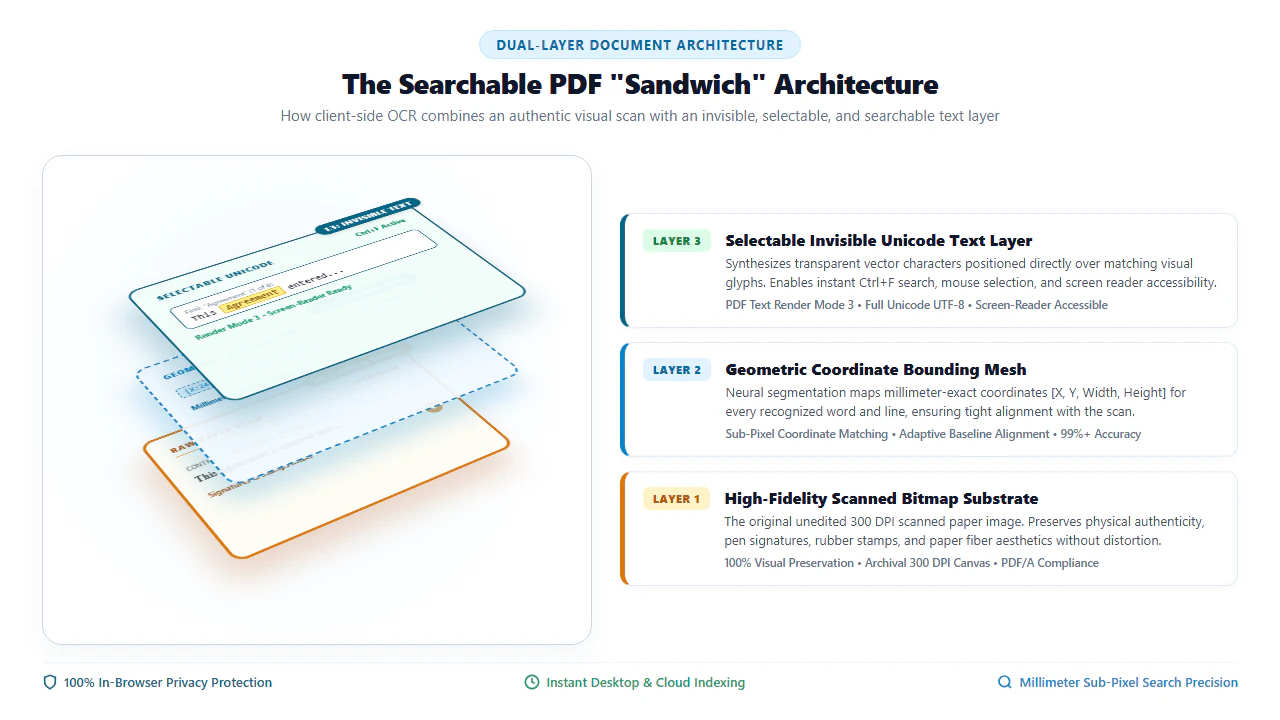
The Architecture of Dual-Layer "Sandwich" PDFs
A searchable PDF is engineered as a two-tier structural composite—frequently referred to in document engineering as a "sandwich PDF":
- The Visual Foreground Layer: The top layer consists of the original, uncompressed 300 DPI raster scan bitmap. It faithfully preserves all historical nuances: coffee stains, handwritten signatures, ink stamps, physical paper textures, and exact typography.
- The Invisible Background Layer: Directly beneath the image layer sits an invisible vector text stream encoded in PDF Text Rendering Mode 3. In this mode, character glyphs are processed by PDF readers for text selection, cursor dragging, and string matching, but their visual fill and stroke are rendered transparently.
- Sub-Pixel Coordinate Mapping: Each recognized character is associated with an explicit
[X, Y, Width, Height]bounding box. When you drag your cursor across an inked word on the paper photograph, your cursor is actually selecting the invisible Unicode character positioned precisely beneath it.
Technical Implementation: PDF Text Rendering Mode 3 & Unicode CMaps
In raw PostScript and PDF content streams, text is normally displayed using Rendering Mode 0 (Fill Text). In contrast, dual-layer searchable documents invoke the 3 Tr operator (Neither fill nor stroke text, invisible):
- Desktop Ingestion: Drag and drop single or multi-page image-only scans directly into your desktop browser. Multi-threading allocates worker threads across your CPU cores for maximum OCR throughput.
- Neural Mesh Alignment: The WebAssembly engine detects text lines, normalizes character baselines, and generates accurate Unicode character maps (ToUnicode CMaps) for flawless copy-pasting.
- Real-Time Verification: Test search queries with Ctrl+F or Cmd+F directly inside the browser viewport. Notice search hit boxes snapping precisely over the printed text.
- Lossless PDF/A Compilation: Save the finalized document locally. The output file strictly adheres to ISO 19005 (PDF/A) archival standards, ready for judicial PACER filing or enterprise DMS ingestion.
- Open Mobile Browser: Launch Safari on iOS or Chrome on Android and access the free Searchable PDF tool. Tap "Select Document" to pick scans from the Files app, iCloud Drive, Google Drive, or camera photo library.
- Touch Pinch-to-Zoom Review: Inspect scanned page clarity using standard touch pinch gestures to verify scan legibility before running recognition.
- In-Memory Mobile OCR: Tap "Make Searchable". The high-performance neural engine executes 100% inside your smartphone's browser memory without uploading any bytes across mobile data networks.
- Direct Mobile Download: Save the searchable PDF directly to your device's "Files" or "Downloads" folder, immediately ready to attach to emails or search using mobile PDF apps.
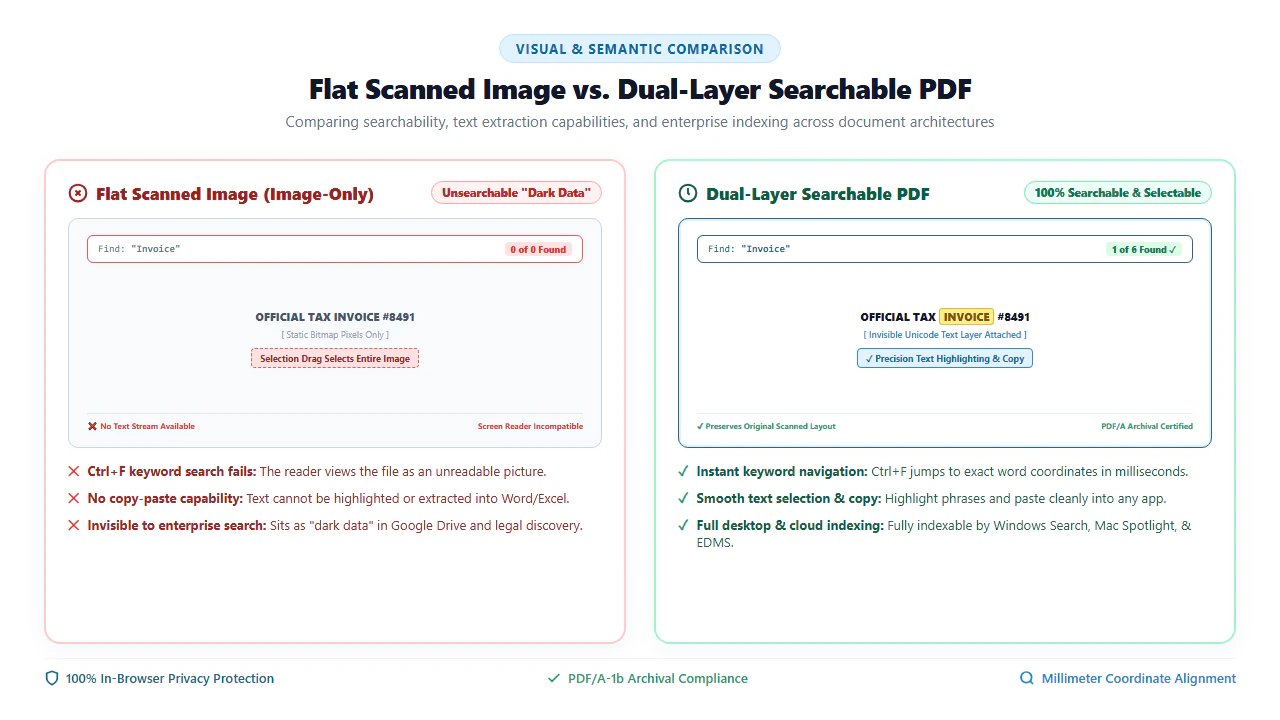
Flat Scanned Images vs. Dual-Layer Searchable PDFs
Understanding the distinction between an un-indexed flat raster image and an OCR-enhanced dual-layer document is vital for compliance, legal litigation, and administrative productivity:
Key Operational Differences
- Instant Keyword Search (Ctrl+F): In a searchable PDF, search bars query the invisible text stream, jumping to matching terms in milliseconds across documents containing hundreds of pages. Flat scans return zero search results.
- Clipboard Extraction (Copy & Paste): Users can highlight paragraphs on the scanned page and paste the text cleanly into Microsoft Word, Google Docs, or accounting ledgers without manual re-typing.
- Assistive Technology & Screen Readers: Visually impaired individuals utilizing screen readers (such as NVDA, JAWS, or Apple VoiceOver) can access the content of paper scans through synthesized speech or refreshable Braille displays.
- Automated Classification & Enterprise Discovery: Document management platforms (SharePoint, Dropbox, Box) and enterprise robotic process automation (RPA) bots can ingest and automatically categorize incoming files based on keyword detection.
verified 100% Visual Preservation & Zero-Upload Guarantee
Our WebAssembly OCR engine operates with non-destructive fidelity. Your original scanned image bitmap is never altered, downsampled, or re-compressed. An invisible vector text layer is simply overlaid behind the scan. Because processing occurs 100% locally in your device RAM, your private medical, legal, and financial scans are never uploaded to cloud servers.
The Optical Character Recognition (OCR) Pipeline
When a physical page is scanned, the resulting PDF is nothing more than an arrangement of colored pixels. Making a scanned PDF searchable requires running the document through a multi-stage Optical Character Recognition (OCR) computational pipeline:
- Preprocessing and Adaptive Binarization: The engine converts color scans into high-contrast monochrome bitmaps using adaptive thresholding (Otsu's algorithm) to separate text characters from background paper grain, shadows, and scanner glass dust.
- Deskewing and Line Segmentation: Rotational page skew is calculated and corrected using Radon and Hough transforms, followed by segmenting the page into logical paragraphs, text columns, and individual word bounding boxes.
- Neural Glyph Matching: Deep convolutional neural networks analyze character contours, distinguishing between visually ambiguous glyphs (such as uppercase 'O' vs. numeral '0', or lowercase 'l' vs. uppercase 'I').
- Unicode Synthesis (PDF Text Render Mode 3): The recognized characters are synthesized into an invisible, selectable vector text layer positioned with sub-pixel coordinate accuracy directly behind the original scan. When a user highlights or searches text, the invisible layer responds while the original visual scan remains untouched.
Quick Fix & Recommended Specialized Tools
Select the specialized browser tool below tailored to your document processing needs:
| Problem / Document Challenge | Underlying Cause | Recommended Browser Tool |
|---|---|---|
| Ctrl+F does not find words on scanned PDF | Missing Searchable Text Layer | Scanned to Searchable PDF → |
| Entire page highlights as one solid image | Unrecognized Raster Scan | Scanned PDF Editor → |
| Need to extract text into editable Word doc | Format Conversion Request | Scanned PDF to Word → |
| Need to redact confidential PII or erase typos | Private Data Protection | Erase & Highlight Tool → |
| Large scanned file exceeds email attachments | High-Payload Uncompressed Bitmaps | Compress PDF Tool → |
Multi-Language OCR & Accuracy Optimization
Maximizing optical character recognition accuracy across complex, multilingual, or historical documents requires fine-tuning input parameters:
- Optimizing Scan Resolution (300 DPI Gold Standard): Scanning documents at 300 DPI provides the ideal character height (approximately 20 to 30 pixels per lowercase letter) for neural network feature detection. Lower resolutions (like 72 or 100 DPI) cause letter loops to collapse, while 600+ DPI increases processing time without noticeable accuracy gains.
- Handling Diacritics and Accented Characters: For European, Latin, or accented texts (such as French, German, or Spanish documents), our OCR engine maps accented characters (e.g., é, ü, ñ, ç) directly to standard Unicode codepoints, ensuring accurate searchability across modern operating system search bars.
- Preserving Multi-Column Layouts: In magazine articles, legal treatises, and academic papers, text is frequently arranged in multiple parallel columns. Modern OCR segmentation algorithms parse columns sequentially from left to right, preventing confusing cross-column text interleaving.
psychology Engineering Pro Tip: Sub-Pixel Bounding Box Calibration & PSM Optimization
To achieve seamless text selection that feels identical to native digital PDFs, our WebAssembly engine automatically applies Page Segmentation Mode (PSM) 1 (Automatic page segmentation with OSD). The engine translates OCR bounding boxes from internal image pixel space into PDF user space coordinates (1/72 inch points) with floating-point sub-pixel accuracy, preventing clumsy cursor drift during multi-line highlighting.
gavel Statutory Legal Compliance & Archival Integrity Notice
Optical Character Recognition (OCR) tools must only be used on documents that you legally own or have authorized permission to process, index, and archive. Adding OCR text layers to internal corporate archives, legal discovery production sets under Federal Rules of Civil Procedure (FRCP Rule 34), and administrative records facilitates lawful discovery and Section 508 accessibility compliance. Using OCR to circumvent digital rights management or extract copyrighted publications without authorization violates 17 U.S.C. § 1201.
- check_circle 100% Client-Side WebAssembly: Runs entirely in your local browser RAM without uploading sensitive files to cloud servers.
- check_circle Strict Data Privacy: Fully compliant with HIPAA, GDPR, and enterprise confidentiality rules with zero server data retention.
- check_circle Lossless Fidelity: Preserves original 300 DPI text sharpness, authentic line baselines, and exact page layout structures.
- check_circle Universal Cross-Platform: Works seamlessly across Windows, Mac, Linux, iPhone, iPad, and Android with zero installation.
bolt Quick Summary (AI Overview)
To make a scanned image PDF searchable so you can find words using Ctrl+F, use the EditScannedPDF Searchable OCR Tool. Our free, client-side WebAssembly engine generates an invisible, selectable Unicode text layer positioned precisely over your scanned document directly in your web browser with 100% privacy and zero server uploads.
Experience Fast, Seamless, 100% Private PDF OCR
Transform image-only scanned documents into selectable, searchable PDFs with client-side OCR running directly on your computer.
manage_search Make Scanned PDF Searchable FreeFrequently Asked Questions
Why doesn't Ctrl+F work on my scanned PDF?
Standard scanners save paperwork as flat bitmap photographs composed of colored pixels rather than machine-readable Unicode text. Because there is no underlying digital text layer, search features cannot find words until the file undergoes Optical Character Recognition (OCR).
Will making a PDF searchable alter its visual appearance?
No. Our tool creates a dual-layer 'sandwich' PDF where recognized text is rendered using PDF Rendering Mode 3 (invisible text). The transparent glyphs are mapped directly behind the original scan, so the visual layout, handwriting, and stamps remain 100% identical.
Can I copy and paste text from a searchable scanned PDF?
Yes. Once processed with OCR, you can highlight sentences on the scanned page, copy them to your clipboard, and paste clean text directly into Microsoft Word, Excel, or email clients.
Are searchable PDFs compliant with legal e-Discovery and archival standards?
Yes. Our OCR engine generates PDF/A compliant documents equipped with embedded Unicode CMaps, making them fully compliant with Federal Rules of Civil Procedure (FRCP Rule 34), court PACER filings, and long-term enterprise archiving.
Does making a scanned PDF searchable increase its file size significantly?
No. The invisible OCR text layer consists purely of lightweight vector coordinates and Unicode character encodings, typically adding less than 20KB to 50KB to the entire document while keeping original high-resolution scan images untouched.
What scan resolution (DPI) produces the best OCR recognition accuracy?
300 DPI is the industry gold standard for optical character recognition, providing optimal glyph edge contrast without unnecessary file bloat. Documents scanned at 150 DPI or lower may suffer from degraded character separation.
Can I make multi-language scanned PDFs searchable?
Yes. Our browser-based neural OCR engine supports multi-language recognition (including Spanish, French, German, and multilingual scripts), detecting diacritics and accented characters accurately.
RELATED SCANNED PDF GUIDES & TOOLS: